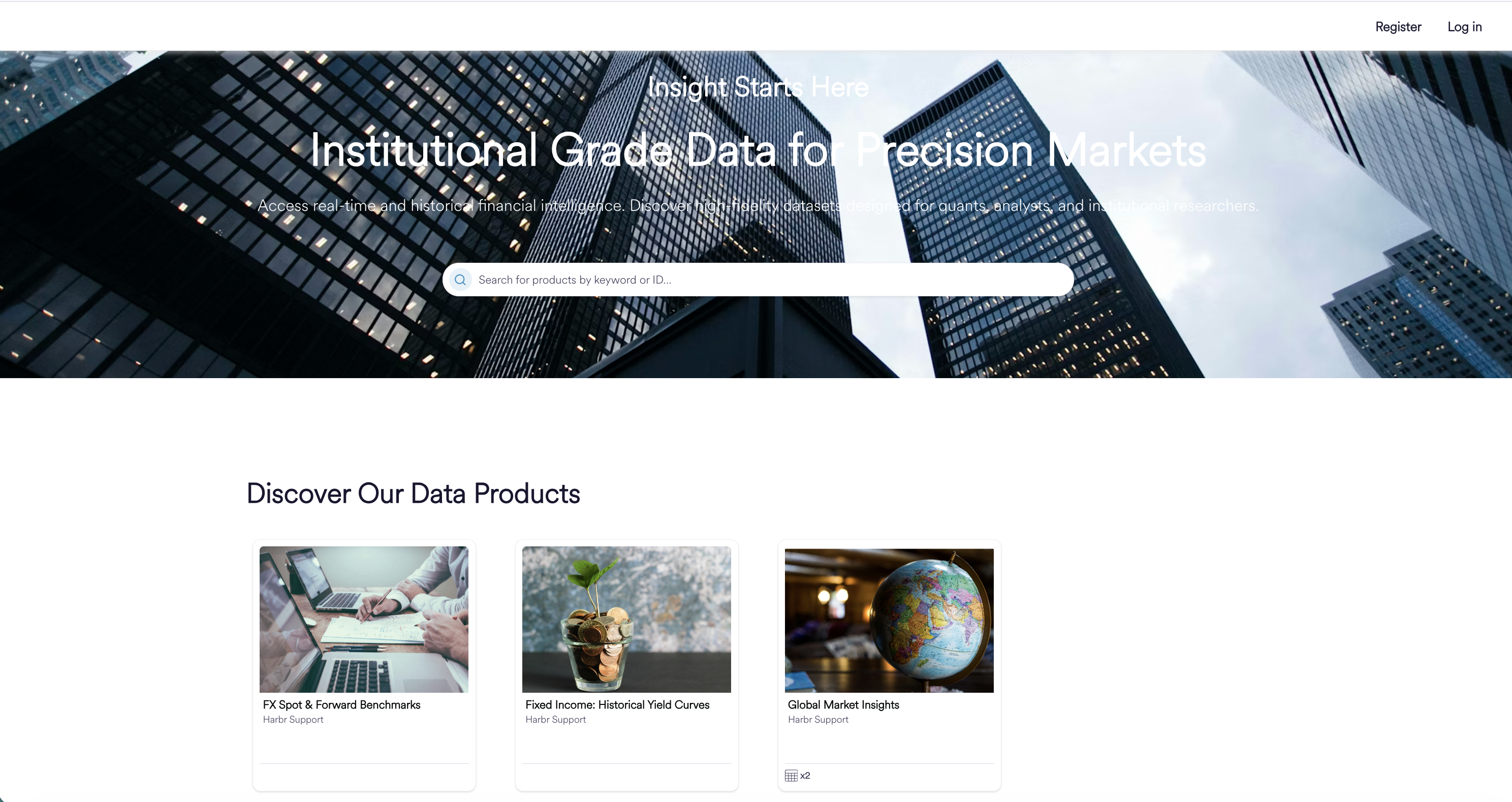
Open Pages allow operators to showcase their marketplace offerings to unauthenticated visitors in a managed way, effectively removing the "login wall" for initial product discovery. This page covers the benefits of Open Pages, how to configure them as an operator, and how product owners can make their products publicly discoverable.
Why Use Open Pages?
Traditionally, all product discovery required a logged-in session. Open Pages changes this by introducing publicly accessible landing pages and product pages. This feature provides several strategic advantages:
-
Top of Funnel Growth: Increase your marketplace visibility by allowing potential consumers to browse your catalog without upfront commitment.
-
Higher Conversion Rates: By showcasing high-value products on curated landing pages with clear Calls to Action (CTAs), you can drive more high-intent traffic toward registration and subscription.
-
Operator Branding: Apply your platform's theme consistently across all public-facing pages to maintain a professional and trustworthy brand presence.
Search & Discoverability (SEO)
Your Open Pages and public product pages are also optimised to work well with search engines and link sharing, so visitors can find and share them more easily.
-
Search-ready product pages. Every published product page automatically carries a proper title, summary and preview image, so it reads clearly and looks credible in search results and when a link is shared in chat or on social media.
-
Search-ready Open Pages. Your Open Pages automatically generate their title, summary and preview image from the page's own header content — no setup required.
-
Control how your pages appear. A Search & discoverability section in the Open Page editor lets you override the search title, summary and share image, and choose whether the page is listed in search engines. Your settings take precedence over the automatic defaults, field by field.
-
Fast, fully crawlable catalogs. Open Pages with large catalogs (up to 500 products) load quickly, with all product text and links available immediately so nothing is missed by search engines.
-
Faster updates. When you publish or edit an Open Page, the updated version reaches visitors within a few minutes.
-
Search engine access. If a page is set to be listed in search engines (using the toggle described above), all search engines and AI crawlers are currently allowed to index it. There is currently no separate control to allow regular search indexing while blocking AI-training crawlers specifically — it's a single all-or-nothing setting.
Operator Guide: Setting Up and Configuring Open Pages
Ecosystem admins can manage landing pages through a dedicated management area called Open Pages under the Branding and Exchange section in the Platform Admin area. This allows for the creation of multiple Open Pages, such as industry or Organization specific landing pages.
Note: Open pages must first be enabled in the platform metadata by an Eco Admin.
Key: openPagesConfig
Value: enabled: true/false — controls whether Open Pages are active for the ecosystem.
registrationUrl — the destination URL for the Register CTA button. This is consistent across all Open Pages.
publicUrl — the base public URL for the marketplace (e.g. public-marketplace.[customer-domain]).
-
If not set, the path will not display in the Open Page management area.
Step-by-Step Configuration
When creating or editing an Open Page, operators interact with a split-screen interface featuring a configuration form and a live mini-preview.
-
Name and Path: Provide a management name and a unique URL path.
-
Configure the Header:
-
Add a background image via URL.
-
Set the Header and Subheader text.
-
Enable the Open Page Search Bar to allow visitors to search products Exchange summary text and the Display name
-
-
Add Sections: You can add multiple re-orderable sections to build the page:
-
Selected Products: Choose specific "open" products to highlight. You can choose to display them as tiles, icons, or text-only.
-
Call to Action (CTA): Add a feature image, descriptive text, and a button linking to a destination, such as an external “Contact Us” page.
-
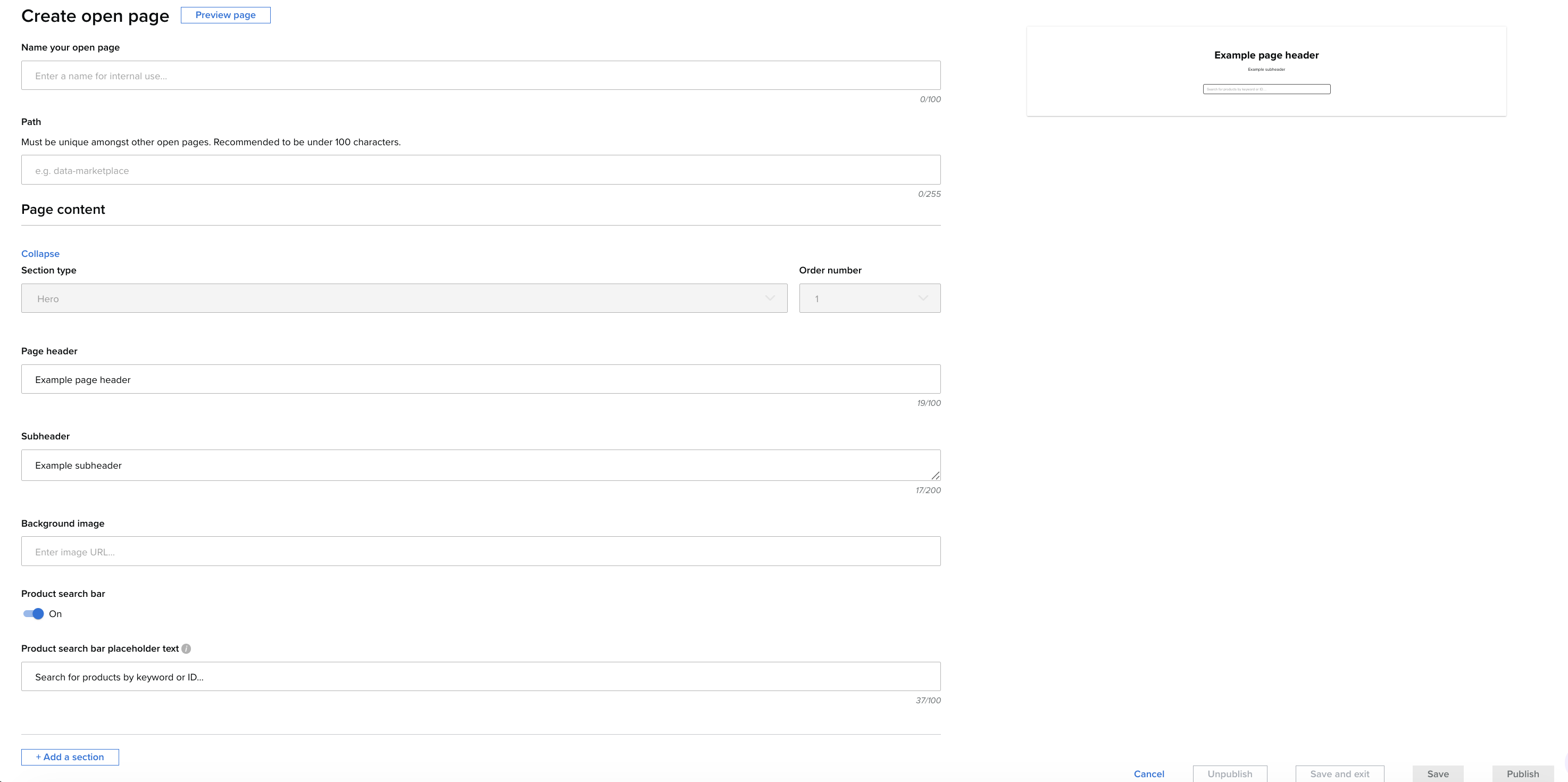
Note on Lifecycle: Saving a page stores your progress as a draft. You must click Publish to make the page live at its configured URL.
Discovering and Managing Your Open Pages
Once you have created and published your Open Pages, you can manage them and access their public URLs through the Platform Administration section.
Finding Your Open Page Information
To view a list of all existing Open Pages and access their specific details, follow these steps:
-
Navigate to the Platform Administration section of the platform.
-
Under the Branding and Exchange category, select Open Pages.
-
From the displayed list, select the specific Open Page you wish to manage. From here you can:
-
Access the Path: Within the page details, you will see the Path. Clicking this unique URL will take you directly to your live Open Page.
-
Modify Content: Select Edit if you need to update the page's appearance or change which products are currently discoverable within it.
-
Maintaining Control: You can also take your Open Page down by selecting Unpublish or you can delete the page entirely but clicking Delete.
-
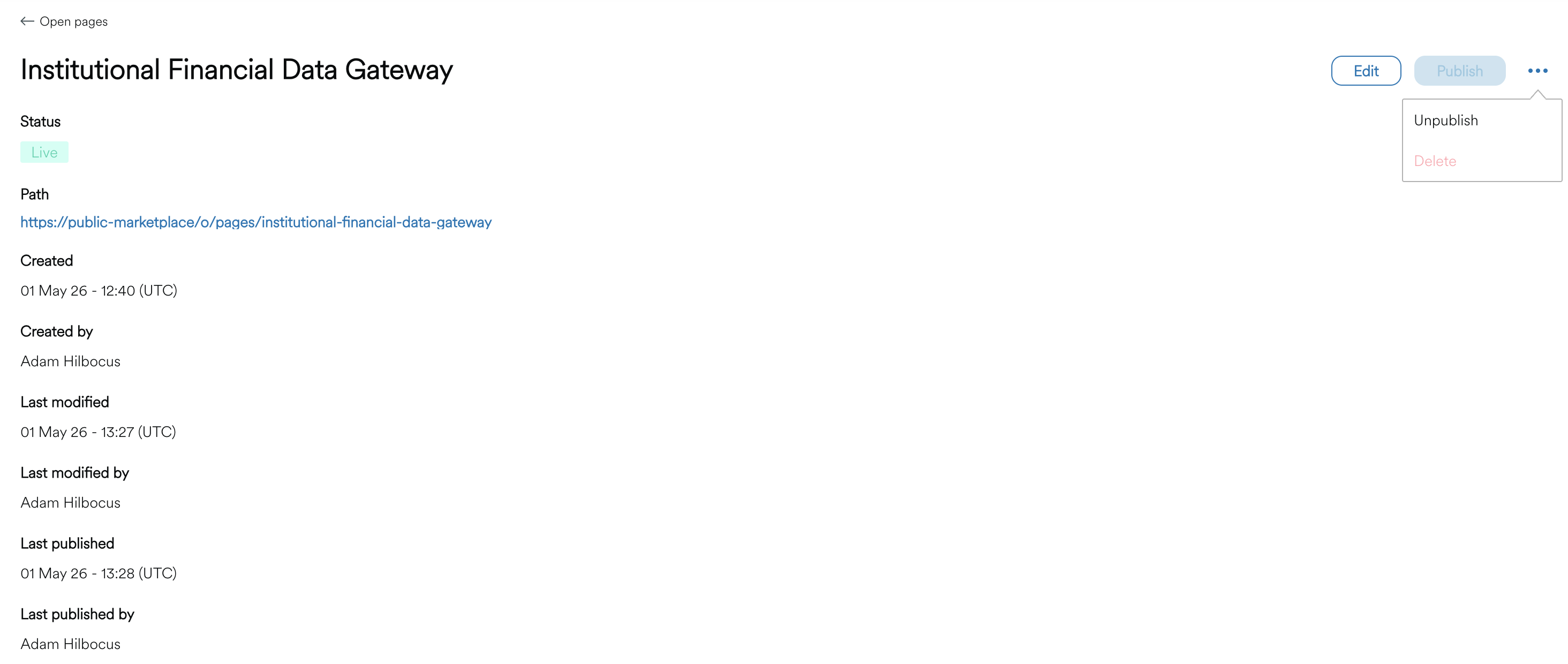
Note: When creating or updating an Open Page or a Product featured within it, it may take a few minutes for the changes to fully take effect on the live site.
Producer Guide: Making Your Product "Open"
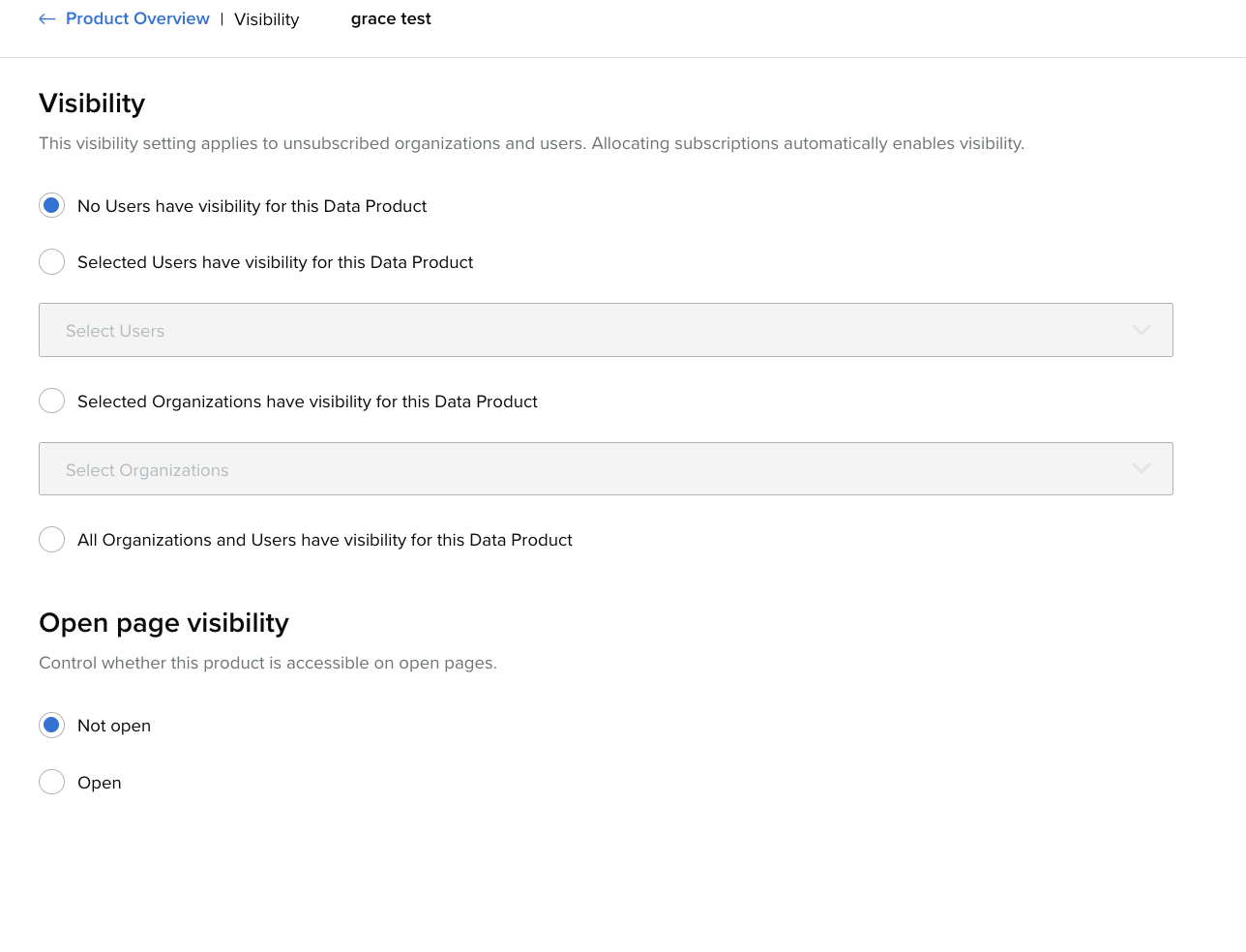
Product owners can opt-in to public discovery during the product creation or editing journey. This is controlled by a simple toggle in the Visibility section.
How to Enable
-
Navigate to the product management and select the desired product.
-
In the visibility settings, select Open.
-
Once the product is released, a public URL is automatically generated.
What is Included vs. Omitted on the Open Product Page?
To protect sensitive data while still providing enough detail to drive interest, the public product view is intentionally limited:
-
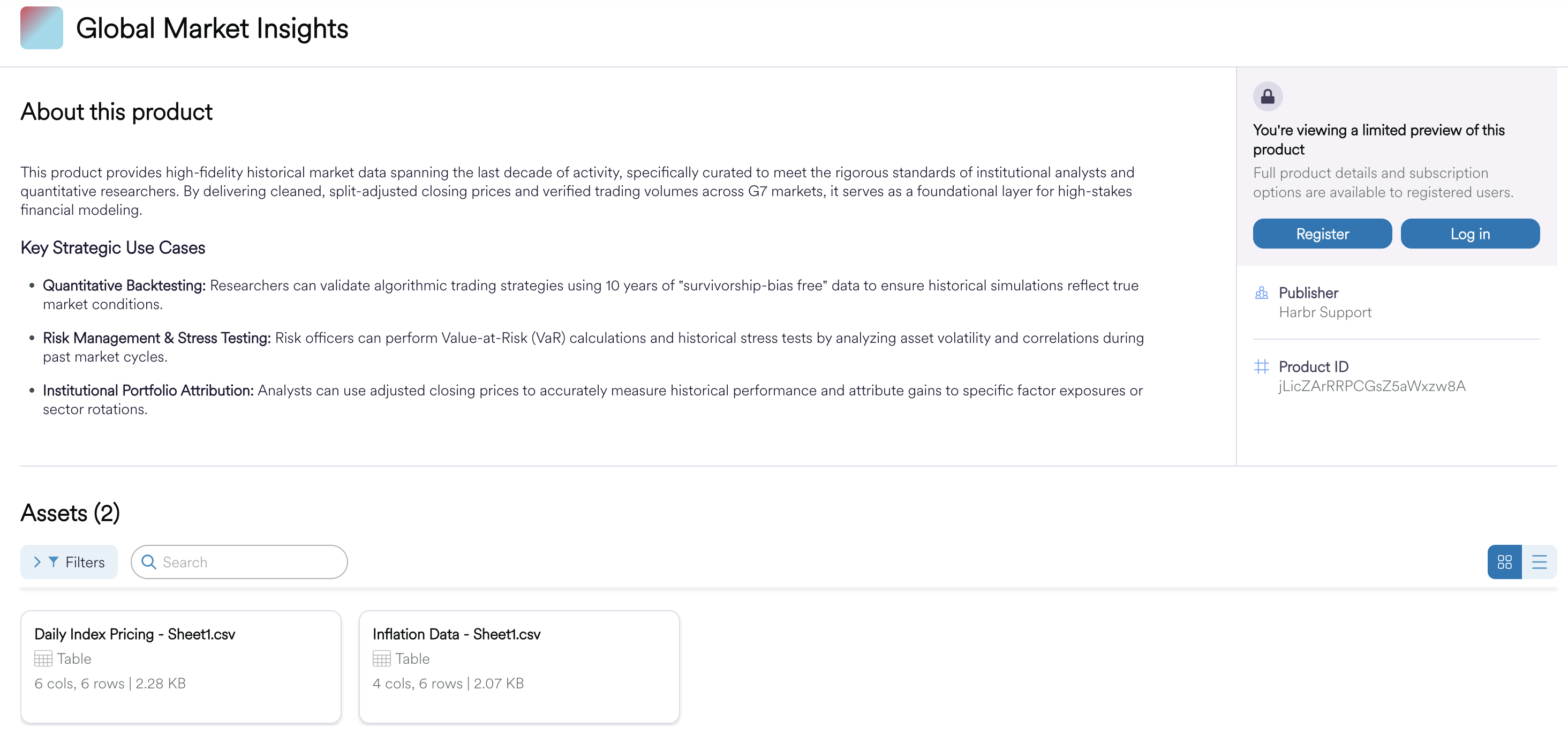
The following product information is available on the open product page:
-
Product icon, display name, publisher name, product ID
-
Long description
-
Header image
-
Asset display names, types, and card metadata (columns, rows, size)
-
For custom content type assets, the type is displayed as "Custom content"
-
-
The following product information is omitted from the open product page:
-
Asset metadata, dictionary, and sample data access
-
Subscription plans
-
Last data refresh, contact details, refresh frequency, and custom metadata
-
Subscribe button and subscription state
-
Related products section
-
Footer
-
The Consumer Experience: Public Discovery
Unauthenticated users visiting an Open Page or a public product page see a streamlined, minimal navigation bar designed to drive them toward the next step in the funnel.
-
Registration: A 'Register' button redirects users away from Harbr to an external, custom registration URL are created and managed by the platform owner to initiate their onboarding journey.
-
Login: A "Log in" button is always available. If a user logs in while viewing a specific open product page, they are automatically redirected to the full, authenticated version of that same product page.
-
Search: Consumers can use the search bar on an Open Page to find specific products curated for that view (if set up but the Operator).
Note: The “Register” button is configured in the platform metadata separate to the Call to Action Section of the Open Page Builder. It is consistent across all of the your platforms Open Pages.