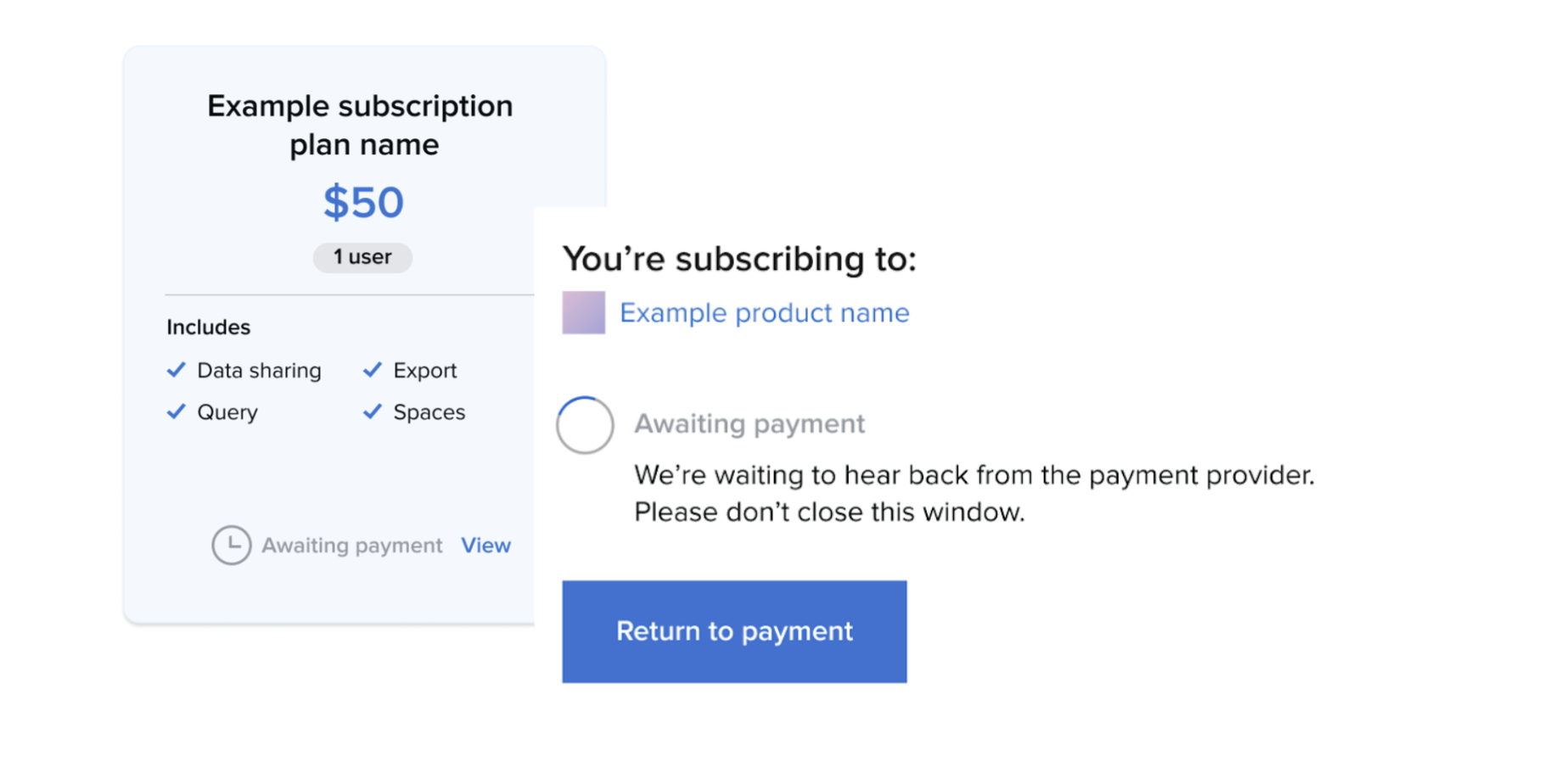
Completing your Subscription Journey via Self-Serve with Payment allows you complete your subscription in a fast and frictionless way. You will be redirected to a third party payment provider (eg Stripe) via an integration that has been set up by your platform Operator.
The following step by step walkthrough takes you through consuming a product via Self-Serve with Payment.
1. Locate the Data Product
Navigate to the relevant Data Product page on the platform to view available options.
2. Select a Subscription Plan
Review the available plans and choose self-service plan that fits your specific use case.
3. Initiate Payment
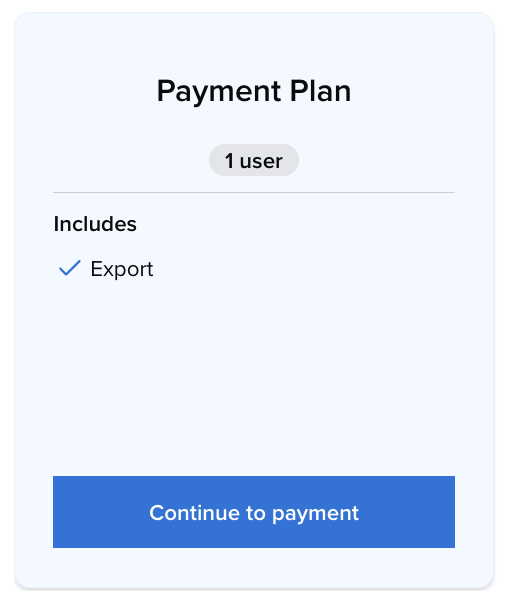
On the selected plan card, click the 'Continue to payment' button.
4. Review and Agree to Terms
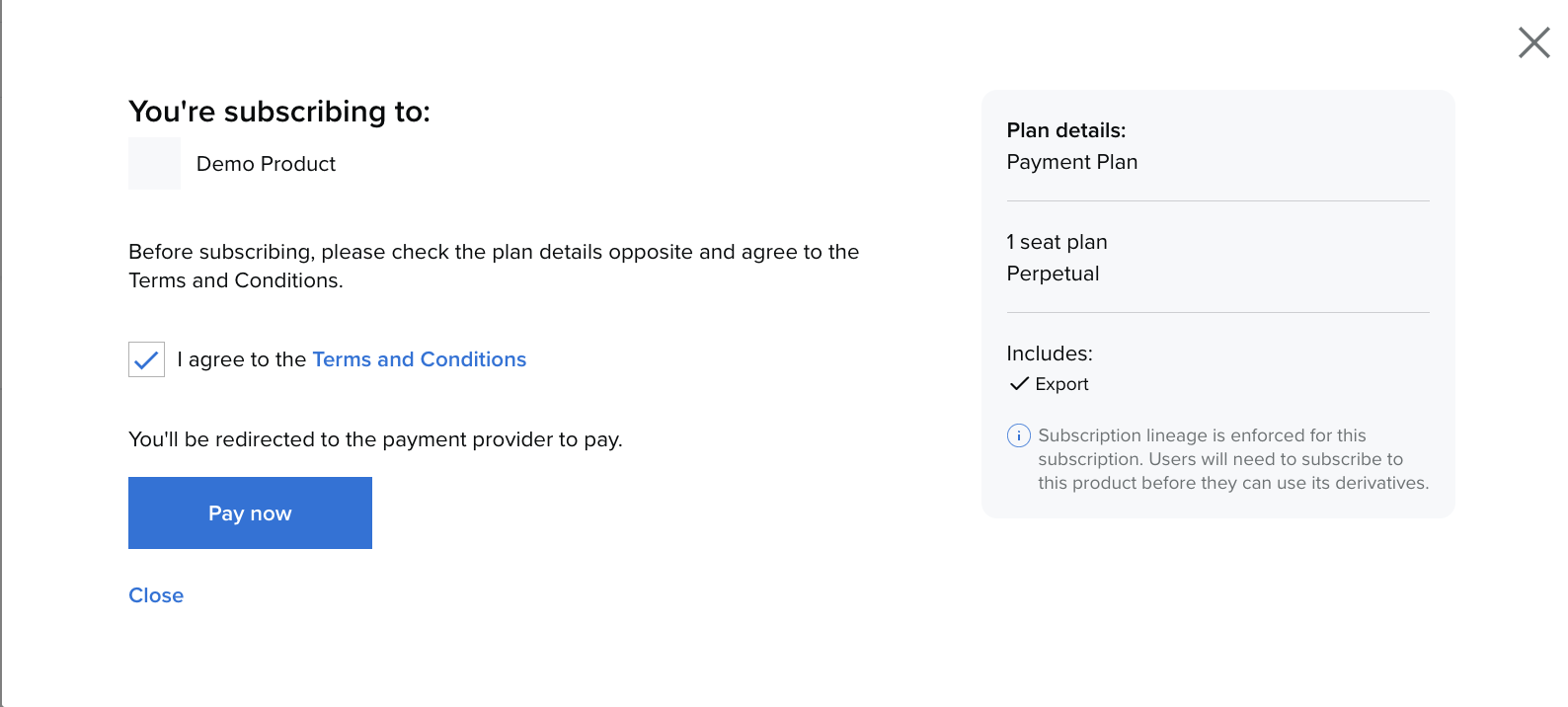
Once the payment summary appears:
-
Carefully check the plan details.
-
Agree to the Terms and Conditions.
-
Click 'Pay now'
5. Complete External Payment
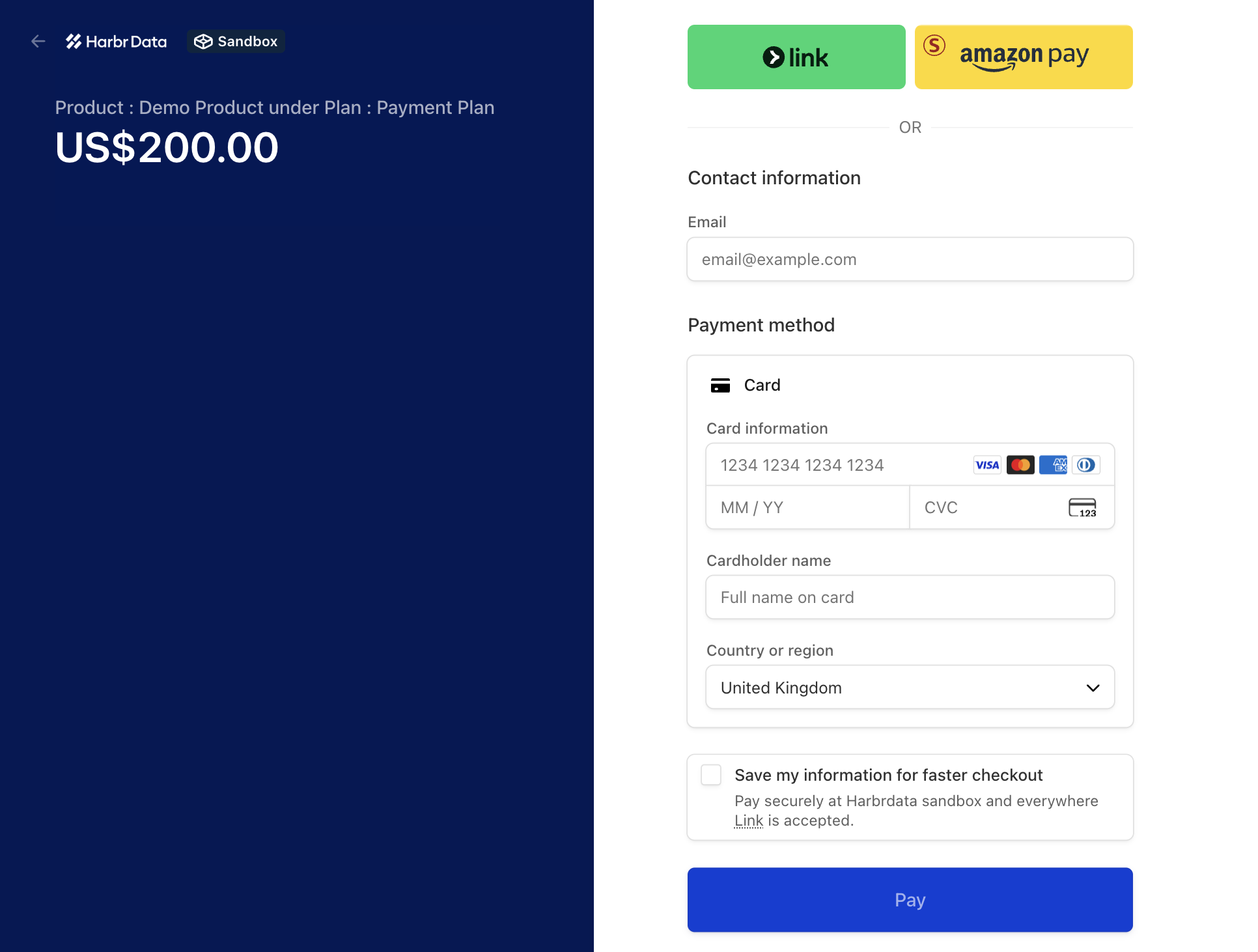
You will be redirected to the integrated payment provider's secure page (such as Stripe) to enter your details.
Note: If you accidentally close the payment gateway tab while it is still processing, return to the product page, click 'View', and select 'Return to payment' to resume.
6. Access Your Data
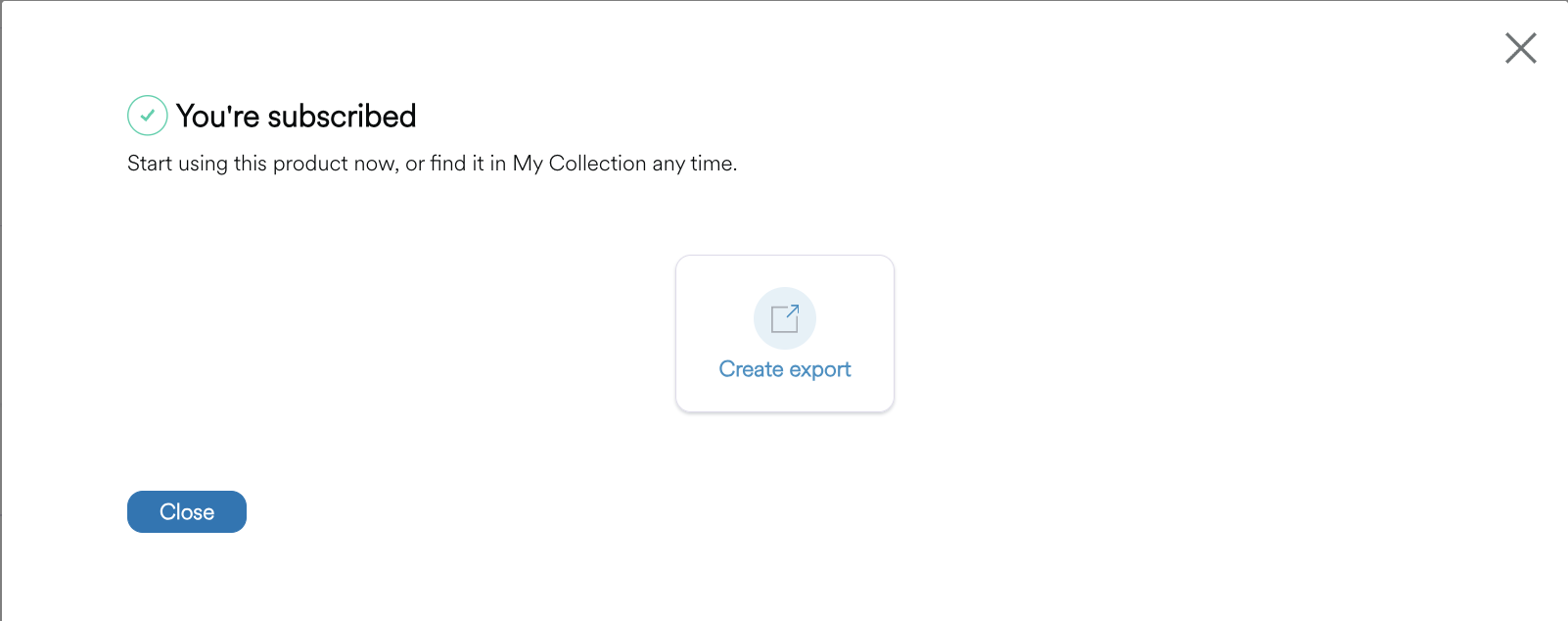
After the provider processes your payment, you will be redirected back to the Product page. Your subscription will be allocated under your chosen plan, and you can immediately begin gaining insights from your new Data Product.
Considerations for Paid Subscription Plans:
If you close the payment gateway tab while the payment is processing, you can return to the payment area by finding the product, clicking view and selecting ‘Return to payment’.
Once your payment has been processed, you will be redirected back to the Product page where the Subscription will have been allocated under the selected plan. You may briefly observe a processing state.
Additionally, if the payment session expires or is cancelled, the plan will return to its original state, and you can safely restart the subscription flow.