
The Requests page lets you review product release and subscription requests and approve or decline them directly in the platform. Each request opens with the full details of what is being released, or of the access being asked for, so you can make your decision with everything in front of you.
Requests that need approval are routed to the organization that owns the product. You see the requests you are able to decide, and you can look back at past decisions at any time.
Note: Requests is available if it has been turned on for your platform. You only see the Requests page if you can approve at least one type of request.
Benefits
-
One place to decide. Every request waiting for you is listed on one page, with a count so you know how many are open.
-
Decide with full context. See the product, plan, terms, price and any row or column limits before you approve a subscription, or exactly what is being released before you approve a release.
-
Clear answers for requesters. Requesters see the outcome and your comment, and a request declined in Harbr always comes with a reason.
-
Works with or without an approval tool. Requests can be decided entirely in Harbr, with no external tool. If your platform also sends requests to an approval integration, you can decide in either place, and the first decision made is the one that counts.
-
A record of past decisions. Approved and declined requests show who decided, when, and the comment they left.
Who Can Approve Requests
|
Request type |
Who can approve |
|---|---|
|
Subscription requests decided on the Requests page |
Subscription Administrators in the owning organization and Ecosystem Administrators. |
|
Product release requests decided on the Requests page |
Product Administrators in the owning organization and Ecosystem Administrators. |
Any request decided by an approval integration is decided by the integration, and Ecosystem Administrators can override it in Harbr.
Ecosystem Administrators can see and decide every request across the platform.
You can't decide your own requests unless you're an Ecosystem Administrator.
Open the Requests Page
-
Click your profile icon on the Navigation bar.
-
Select Admin panel.
-
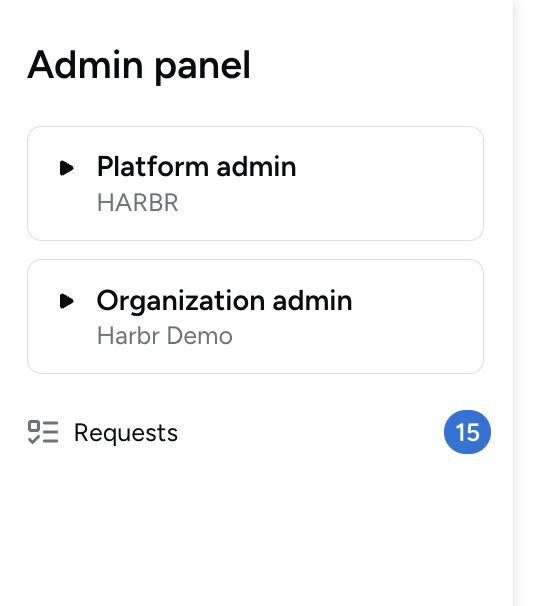
In the side panel, select Requests. The number beside it shows how many open requests are waiting for you.
Tip: The Admin panel also holds the Platform admin and Organization admin pages you have access to. Platform admin is the area previously called Ecosystem admin.
Find a Request
The Requests page opens on your open requests, newest first. Each row shows:
|
Column |
What it shows |
|---|---|
|
Request type |
Subscription or Product Release |
|
Details |
For a subscription, the product and plan. For a release, the product and its LIVE or DRAFT status. Each row ends with a Full details link. |
|
Requested |
When the request was made |
|
Requested by |
The requester's name, with their organization below |
|
Comment |
The requester's comment. Long comments show a View link. |
Requests decided by an approval integration show Decided in and the integration's name instead of approve and decline options.
To narrow the list:
-
Use the Request status filter to switch between Open requests, Approved requests, Declined requests and Failed request . The Approved, Declined and Failed views add Decided by, Decided on and Decision comment columns.
-
Use the Request type filter to show one type of request. It only lists the types you can approve.
-
Sort by the requested date, and move between pages at the bottom of the list.
Tip: Your filters, sort order and page are kept in the page link, so you can share a view with a colleague.
Review a Request
Always open the full details before you decide, so you know exactly what you are approving.
-
On the request's row, click Full details.
-
Review the request. The top of the window shows the request type, the requester and their organization, when it was requested, and the requester's comment. Below that:
-
For a product release, you see the product name, its LIVE or DRAFT status, and what is being released.
-
For a subscription, you see the product, the plan, the terms and the price. If the plan limits rows or columns, you also see which assets, rows and columns are included.
-
Approve or Decline a Request
-
In the Full details window, click Approve request or Decline request.
-
Add a comment for the requester. It's optional when you approve, and required when you decline.
-
Click Approve request or Decline request to confirm.
A message confirms your decision, and the request moves from Open requests to Approved requests or Declined requests. The requester sees the outcome and your comment.
Remember: Nothing is saved until you confirm in step 3.
Note: If someone else decided the request just before you, the window shows that it has already been decided.
Note: If a subscription is approved but the platform can't then create it, the request moves to Failed requests, with the reason in its full details.
Requests Decided by an Approval Integration
Some requests are sent to an approval integration, such as Logic Apps, and are decided there. They appear on the Requests page so you can follow them. If you're a Product or Subscription Administrator, the Full details window shows This request is decided in and the integration's name. Decide it in the integration as usual.
If you're an Ecosystem Administrator, you can override the integration. Only do this when the integration can't decide the request. Click Full details, then Override (integration name). Read the warning, then click Override and approve or Override and decline. Add a comment (optional when approving, required when declining) and click Submit.
Important - The integration isn't told about your decision, so its task stays open. Close it there too. If someone decides it in the integration later, that decision is ignored, because the first decision made is the one that counts.
Notifications for New Requests
If you decide requests on the Requests page, you're notified when requests are waiting for you for requests decided on the Requests page. You get one notification per request type, and it opens the Requests page. To turn these off, go to your profile and switch off Requests to decide.
What Requesters See
Requesters follow their requests from their profile, as described in Approval Requests. A request shows as Requested while it is waiting, then Approved or Declined. Declined replaces the word Rejected everywhere requesters see it.
Requesters see your decision and comment. They do not see your email address for decisions made on the Requests page.