
Video Walkthrough
This video demonstrates how data providers can use Harbr to share data stored in Databricks with external consumers through a streamlined, self-service experience.
It covers the full workflow: a data provider makes Databricks content available on their Harbr storefront, consumers discover and request a subscription to a relevant data product, and upon approval are presented with two delivery options — a native Databricks-to-Databricks share, or an open share using Delta Sharing protocol. For open shares, consumers can self-serve the creation of a share and download a credential file containing a secure bearer token and endpoint details, enabling them to access the data from any platform or tool that supports Delta Sharing — not just Databricks.
The video also covers how active data shares can be managed on the Harbr platform, including the ability to expire or rotate recipient tokens to maintain secure, time-limited access.
This video is relevant for data providers, data product managers, and data engineering teams looking to distribute Databricks data products to external consumers in a secure and scalable way.
Step-by-Step Guide: Consume a Databricks Share in 10 minutes- with no Vendor support!
Once you’ve found a Data Product that you want to use and gain insights from, you don’t have to stay within the platform to do so.
Whether your team uses Databricks, PowerBI, or Tableau, you can access data directly to your preferred environment using Delta Sharing. This removes the need for manual downloads and ensures you’re always working with the most current version of the product.
Step 1: Initiate Your Data
There are two seamless ways to start a Delta Share for your chosen product.
Option A: Directly from the Exchange
-
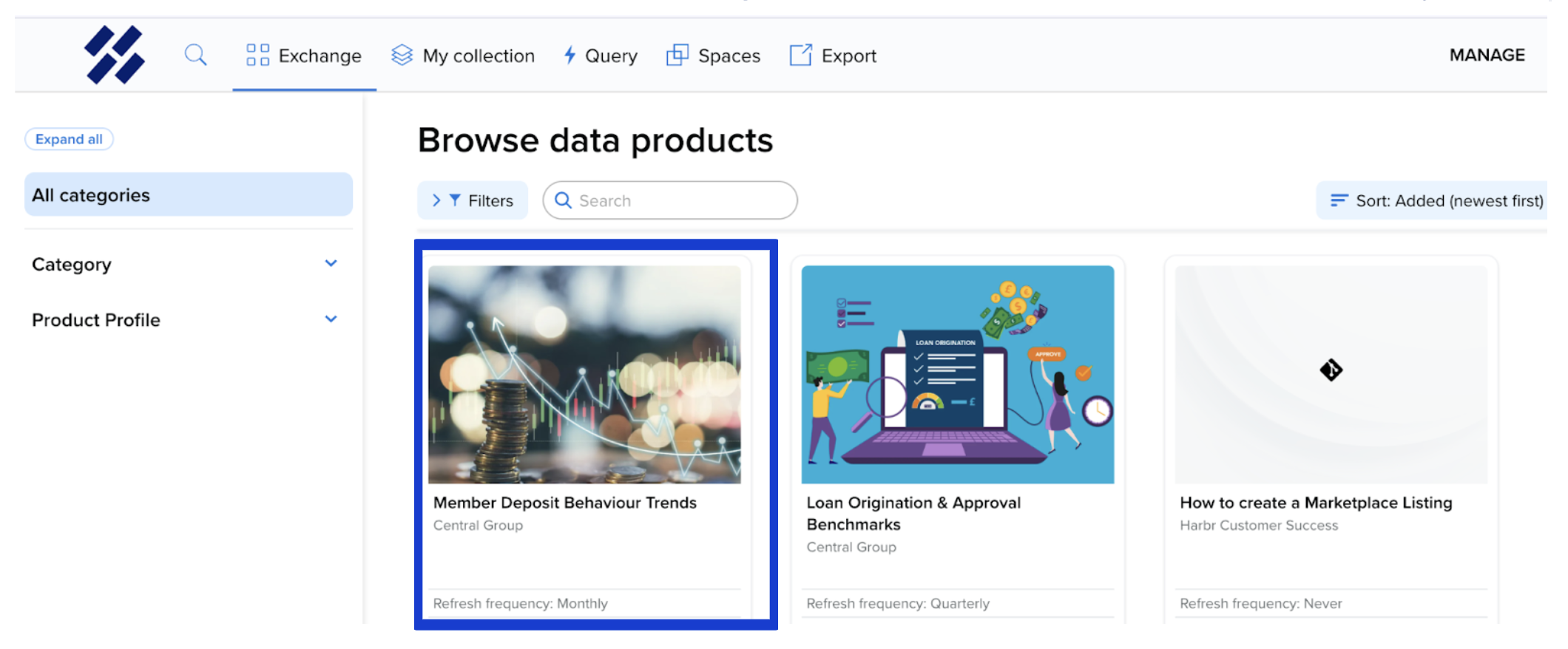
Find the Data Product in the Exchange that contains the economic data you need.
-
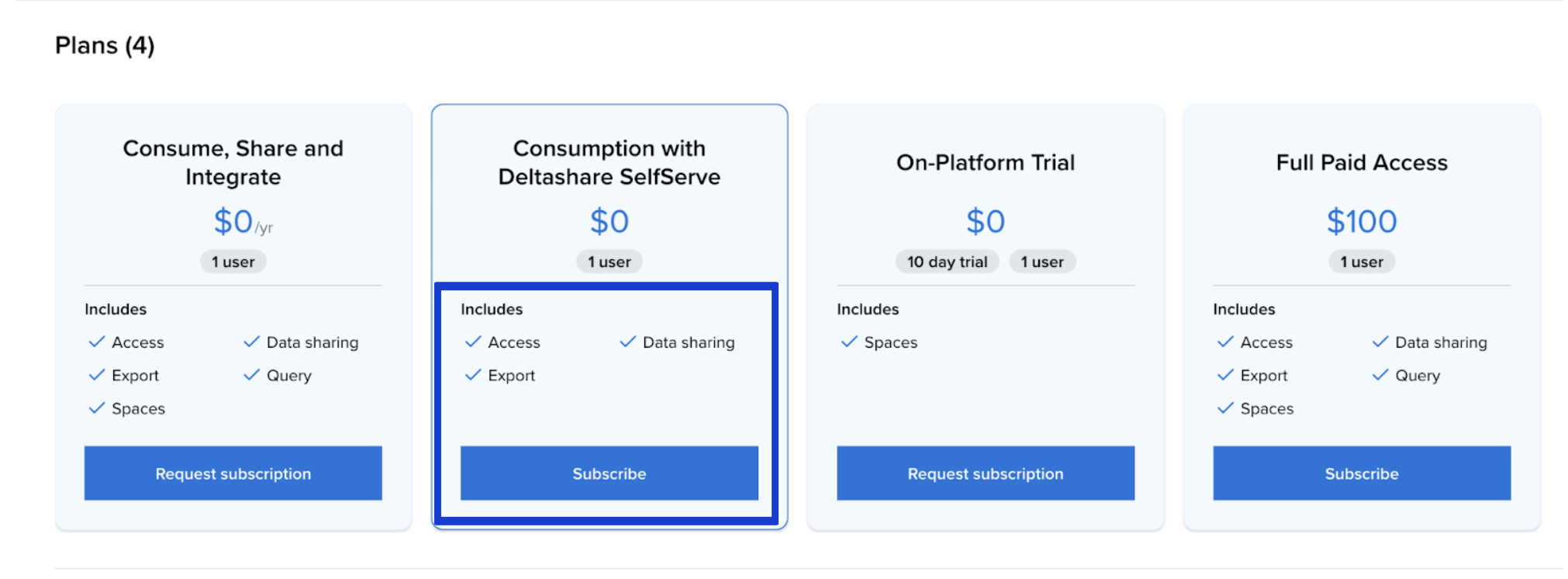
Select a Subscription Plan that explicitly includes the Data Sharing option.
-
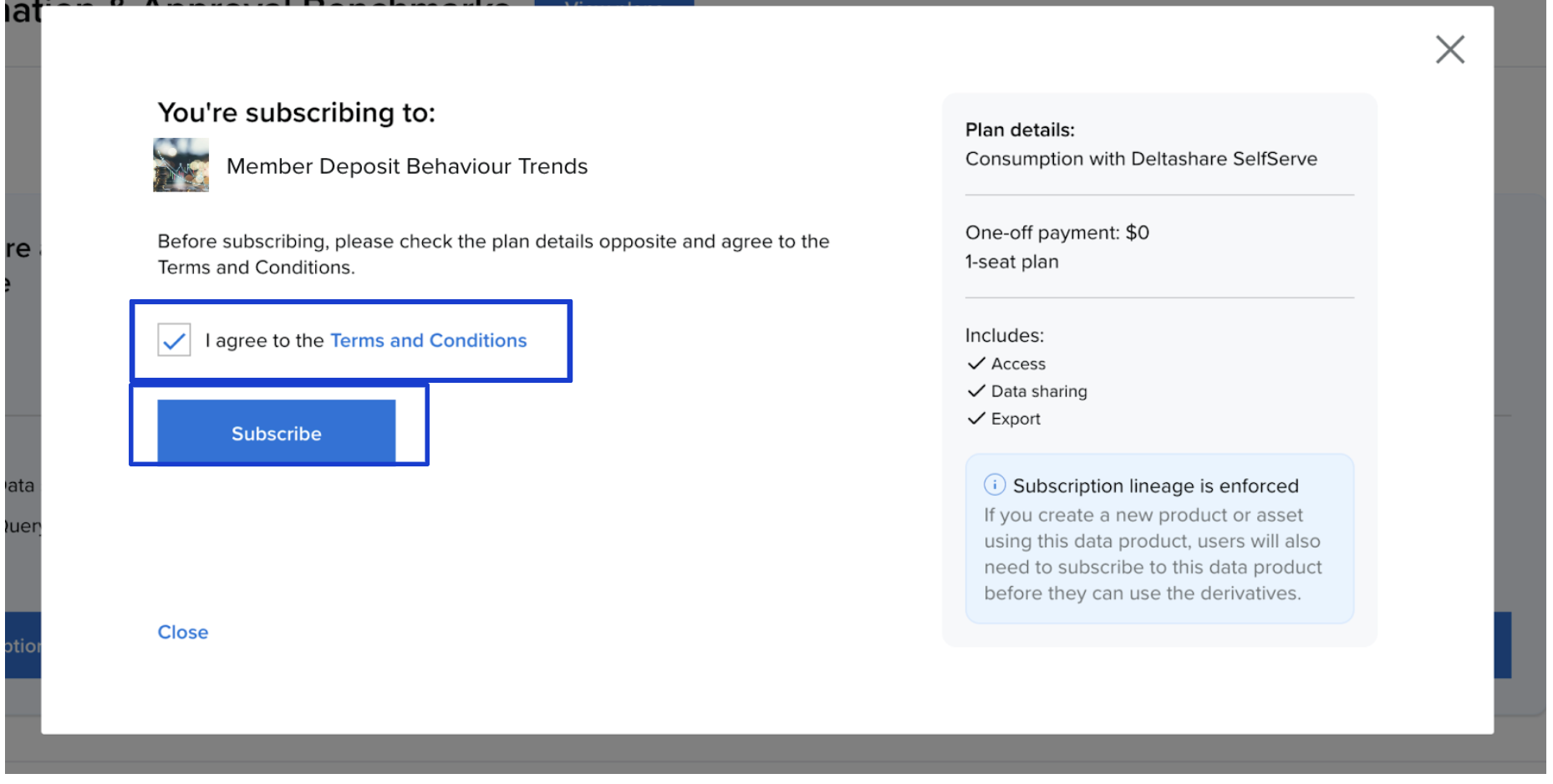
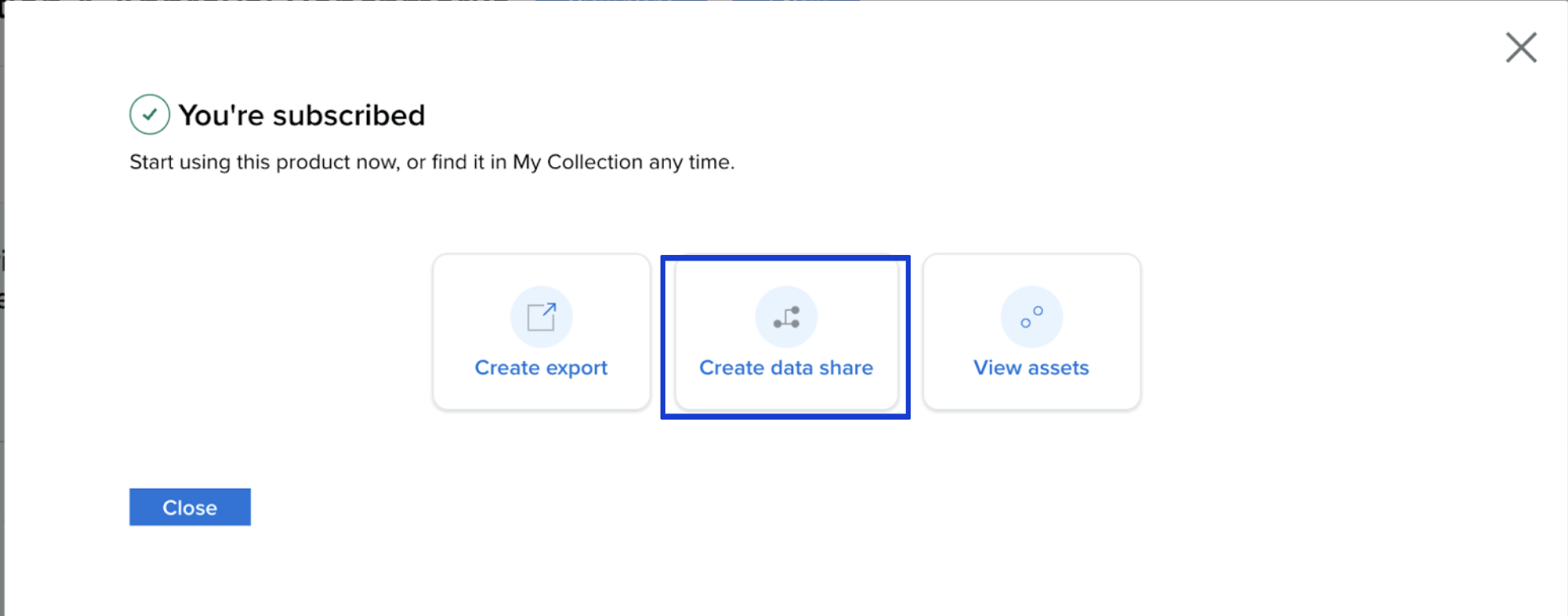
Agree to the terms, then click Subscribe and then select Delta Share.
Option B: From Your Existing Collection
-
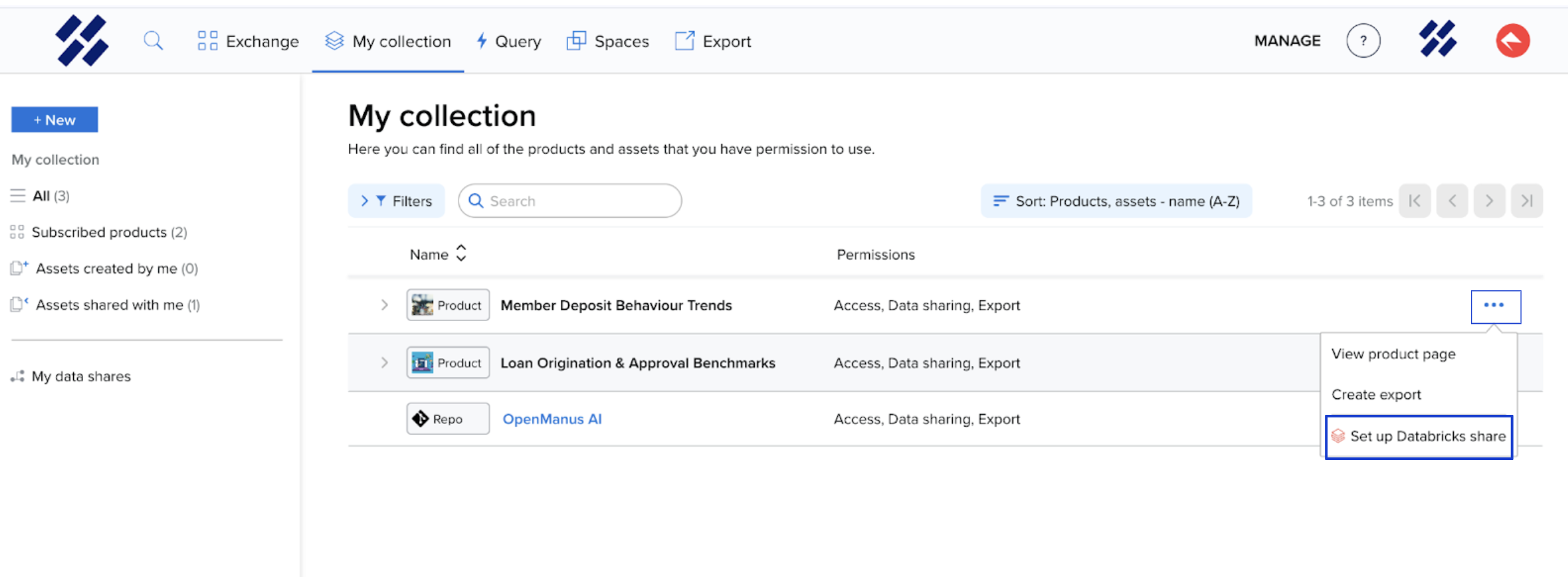
Go to My Collection on the navigation bar.
-
Click the three dots (menu) to the right of your subscribed product.
-
If the provider has enabled it, select Set up Databricks share.
Step 2: Choose Your Connection Type
Regardless of how you started, you will now choose how to deliver the data based on your team's technical setup.
Option A: Databricks-to-Databricks (Native)
Use this if your organization already uses Databricks. It provides the most seamless, high-performance connection.
-
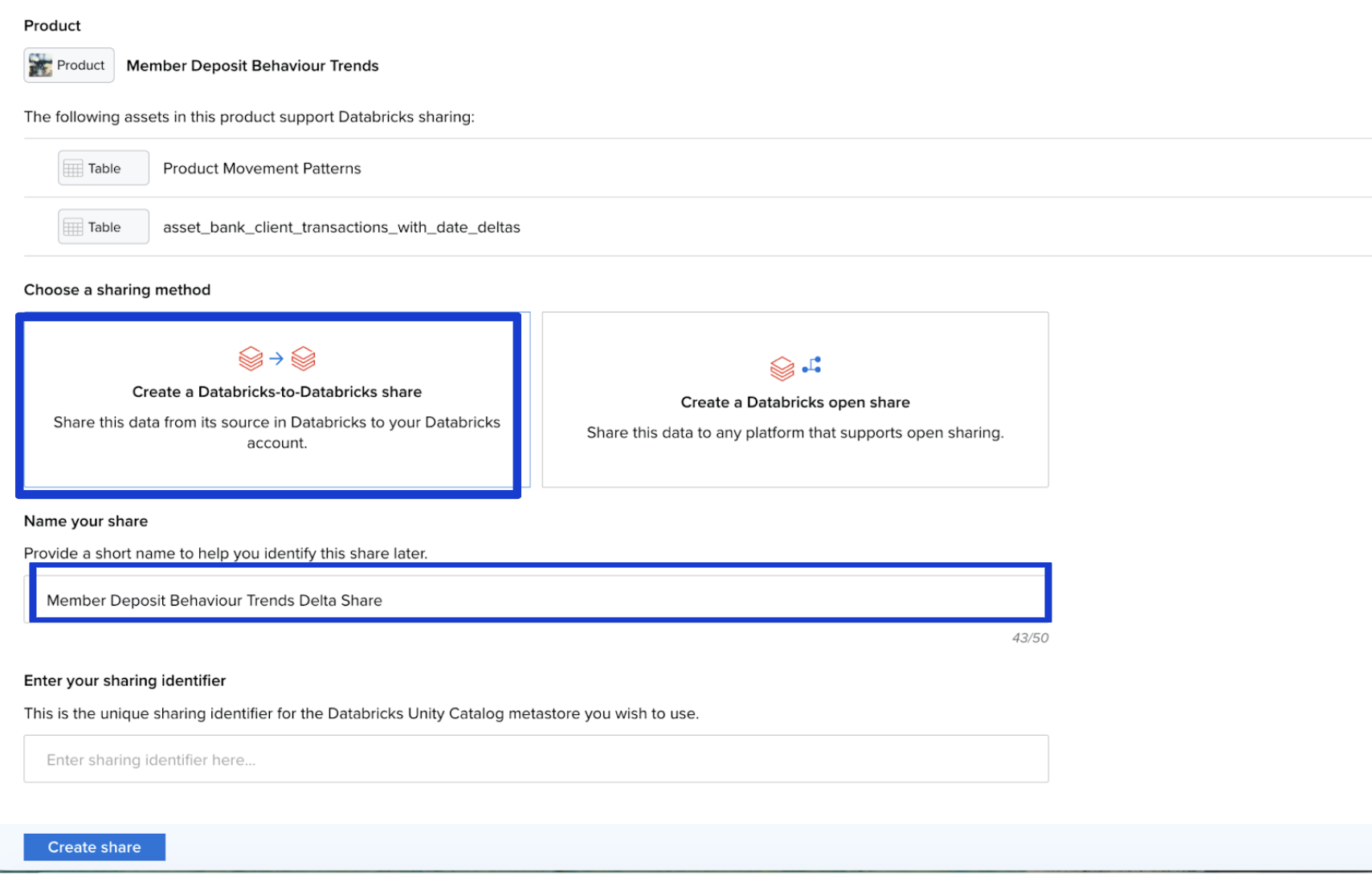
View the names and types of the data assets that are in the share and then click Create a Databricks-to-Databricks share.
-
Give the Share a Name (e.g., "Member Deposit Behaviour Trends Delta Share").
-
Paste the Unique Sharing Identifier: You can find this in the Databricks account of the person receiving the share. Then click Create share.

Option B: Databricks Open Share (Universal)
Use this to connect to almost any other tool (like Excel, PowerBI, or Python scripts).
-
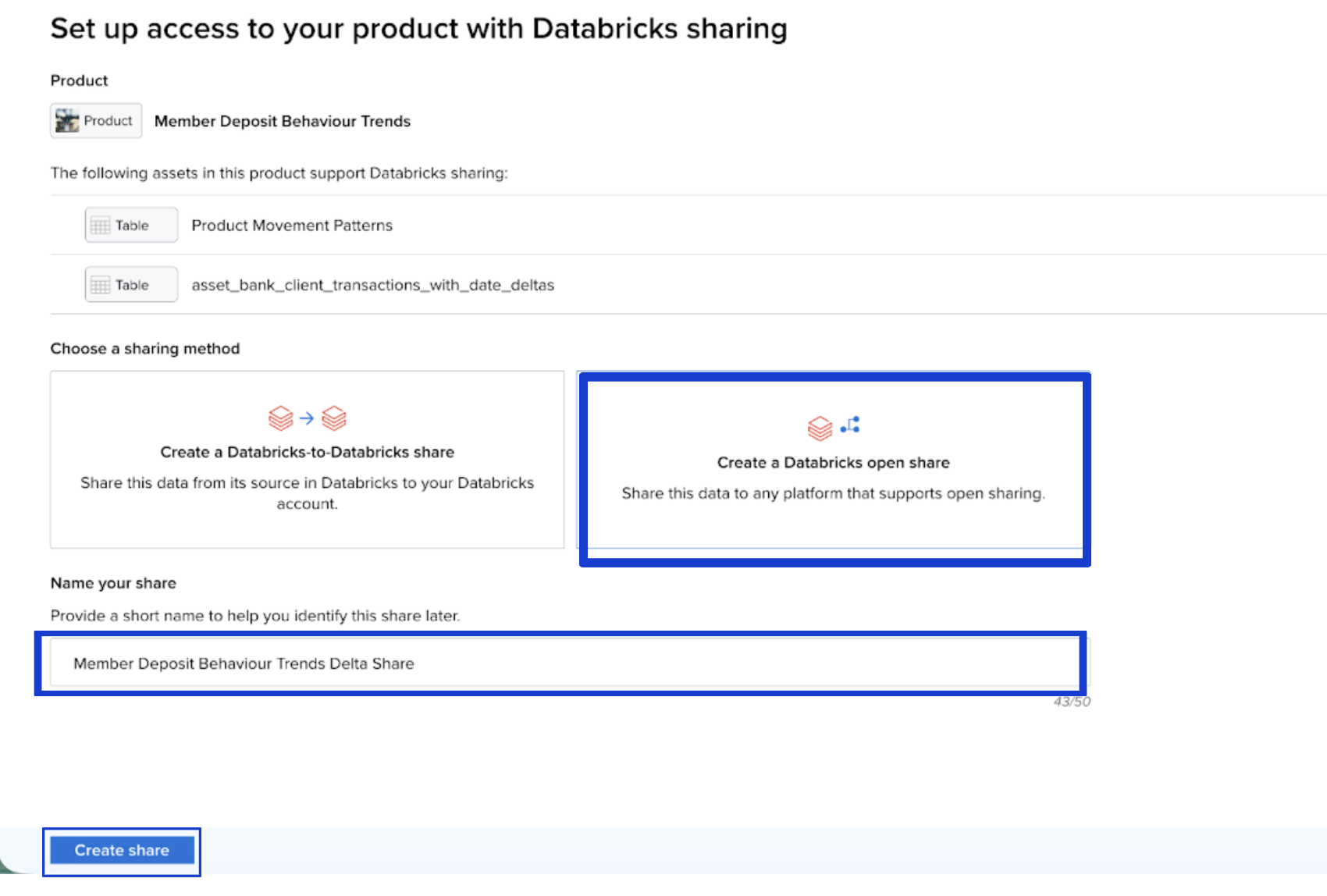
View the names and types of the data assets that are in the share and then click Create a Databricks Open Share.
-
Name the Share (e.g., "Member Deposit Behaviour Trends Delta Share") and click Click Create Share.
-
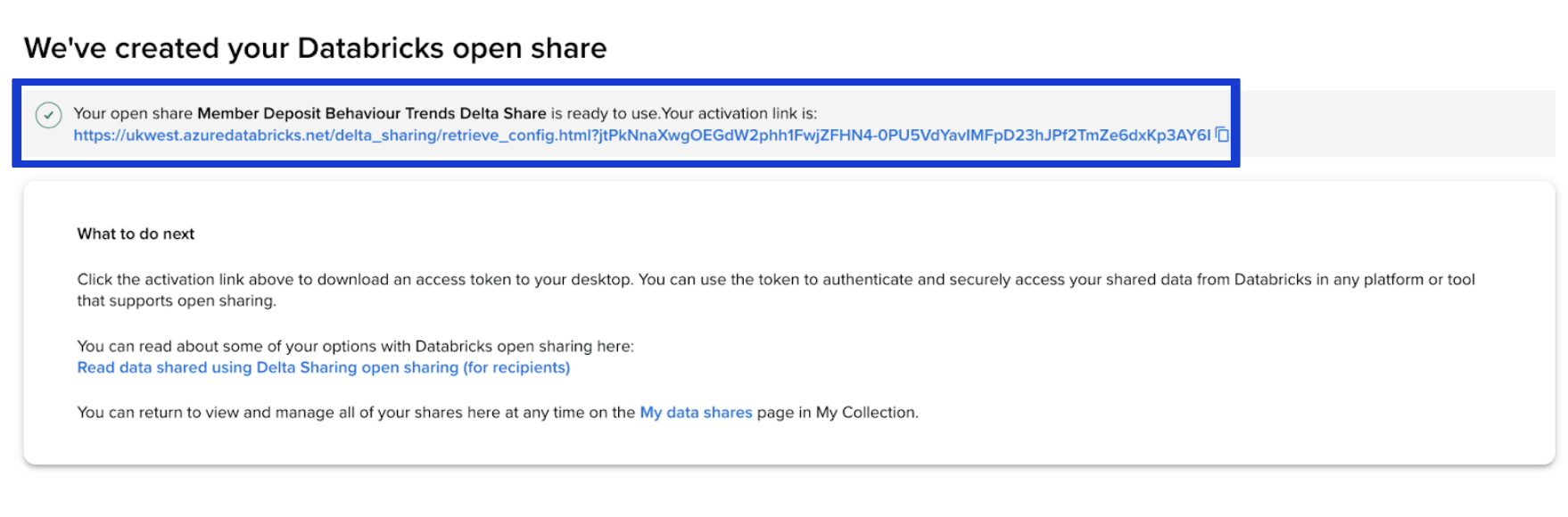
Click the activation link, you will be redirected to a secure screen to download your authentication token.
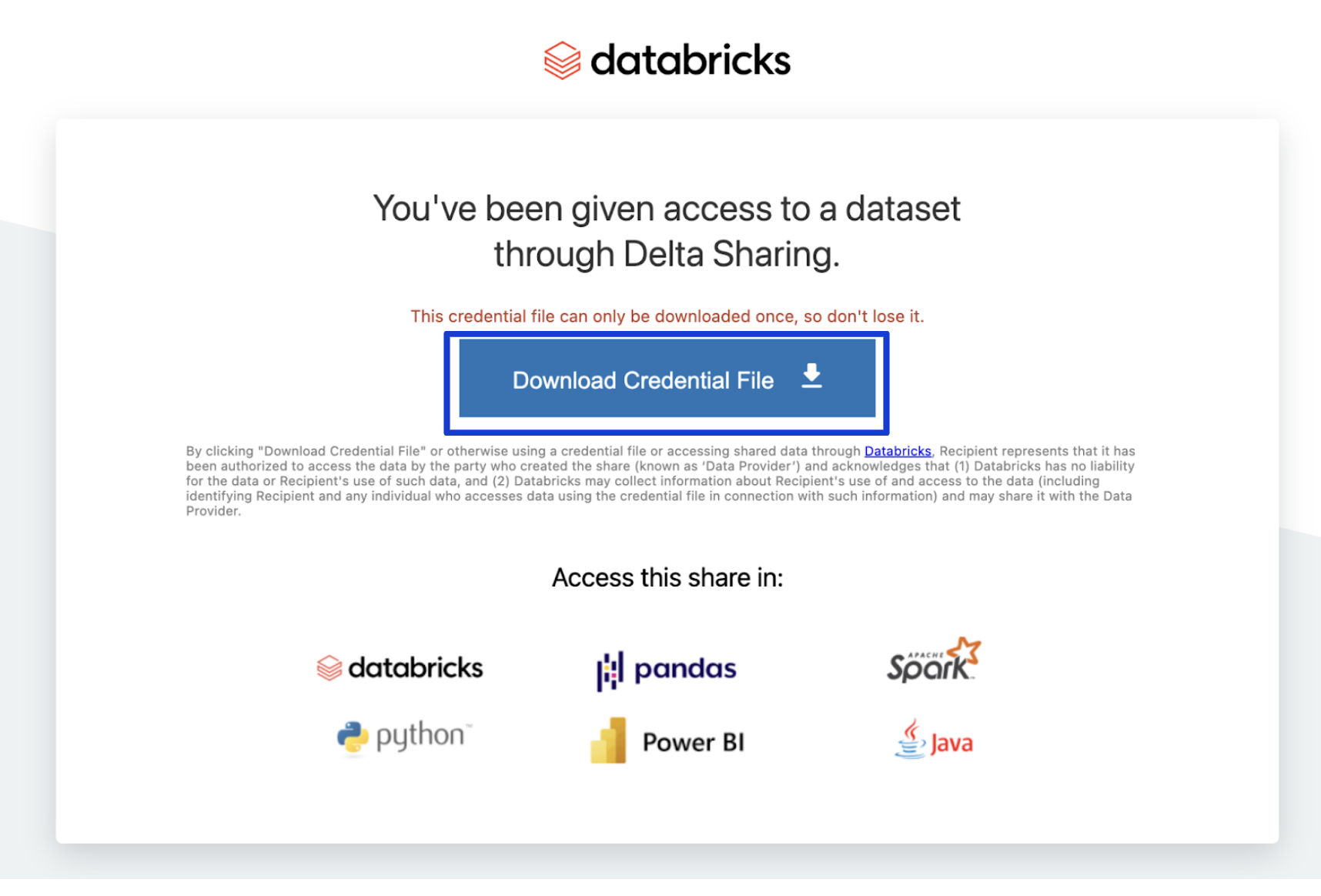
-
Access Anywhere: Use this token to securely pull the data into any platform that supports the Open Sharing protocol.
Step 3: Sharing Success!
Your data pipeline is now open. Your Member Deposit Behaviour Trends will flow directly into your external analysis tools, keeping your data updated without any manual intervention.