
Step-by-Step-Guide: Launch Your First Revenue-Ready Data Product in 30 Minutes
You've added data assets to your Harbr platform and you wish to package and sell those assets in your data marketplace, that is where creating a Data Product comes in. Beyond the building blocks and user journeys detailed in Create a Data Product , it’s worth getting hands-on and gleaning just how quick and easy the productization process is on Harbr.
Let's say that you have some economic data assets which you want to monetize and place in your secure and governed data marketplace. In this guide, we’ll turn your economic data assets into a polished and packaged Data Product that is released onto your secure Exchange.
Step 1: Initiate Your Product Draft
There are two quick ways to start the metaphorical engine:
-
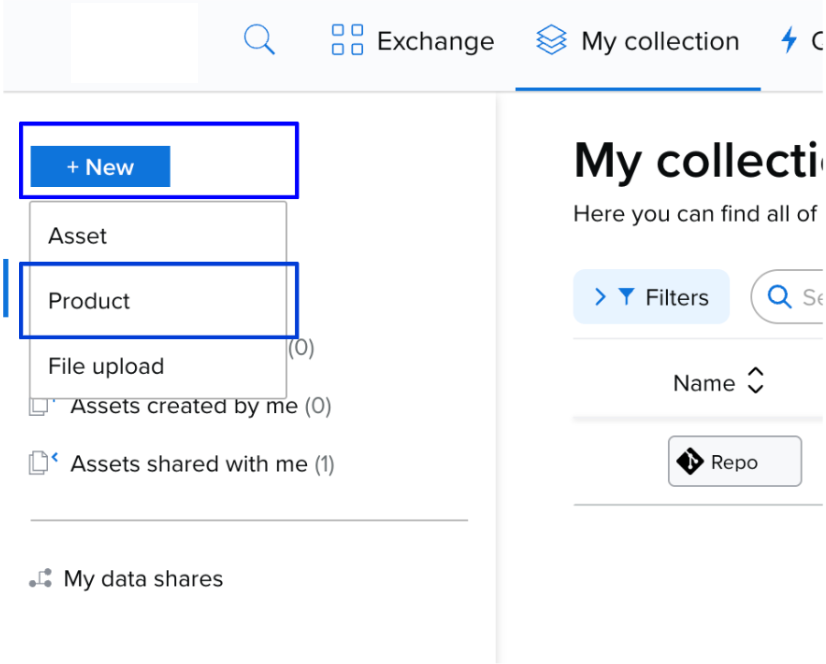
From My Collection: Click the +New button and select Product.
-
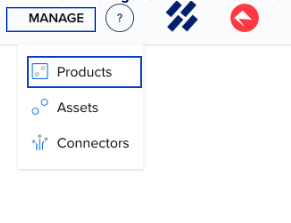
From Manage: Go to Products and click Create Product.

-
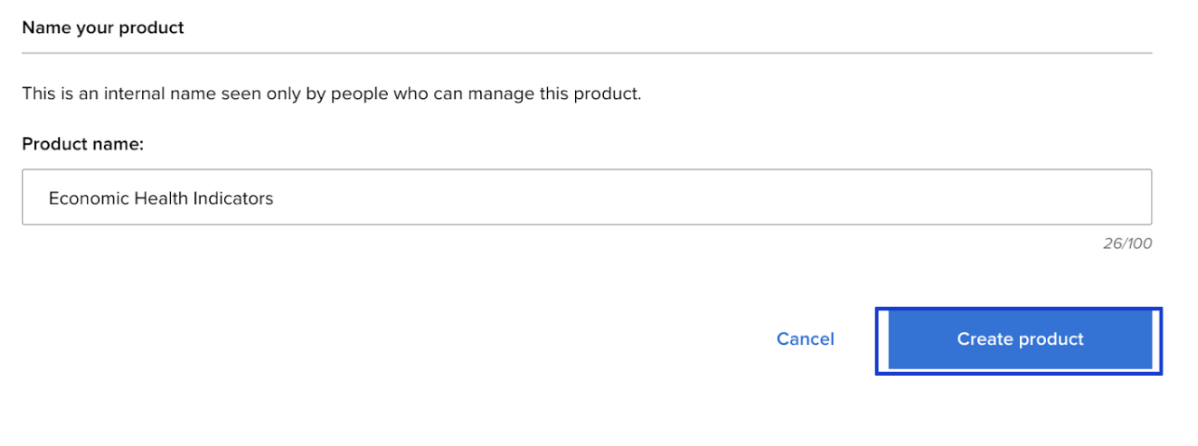
Enter your name (e.g., "Economic Health Indicators"). Once saved, your product exists as a Draft.
Step 2: Bundle Your Economic Assets
A high-value product often requires multiple data points.
-
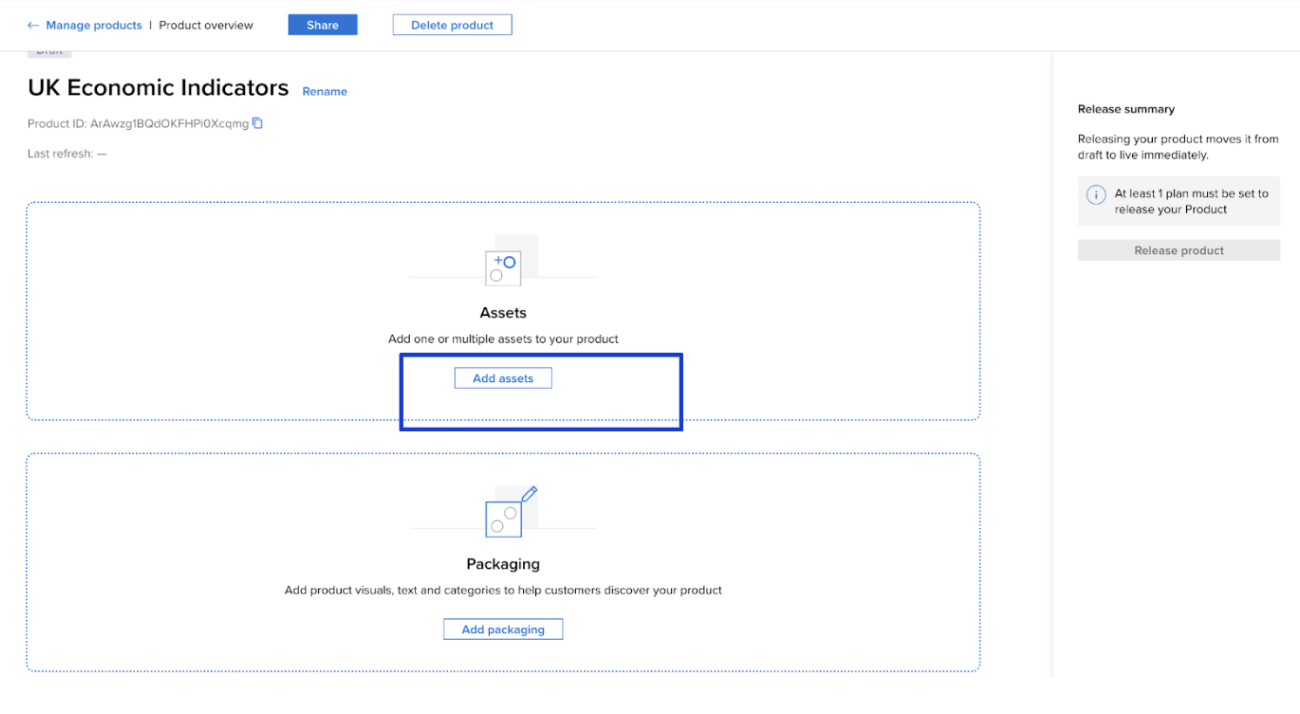
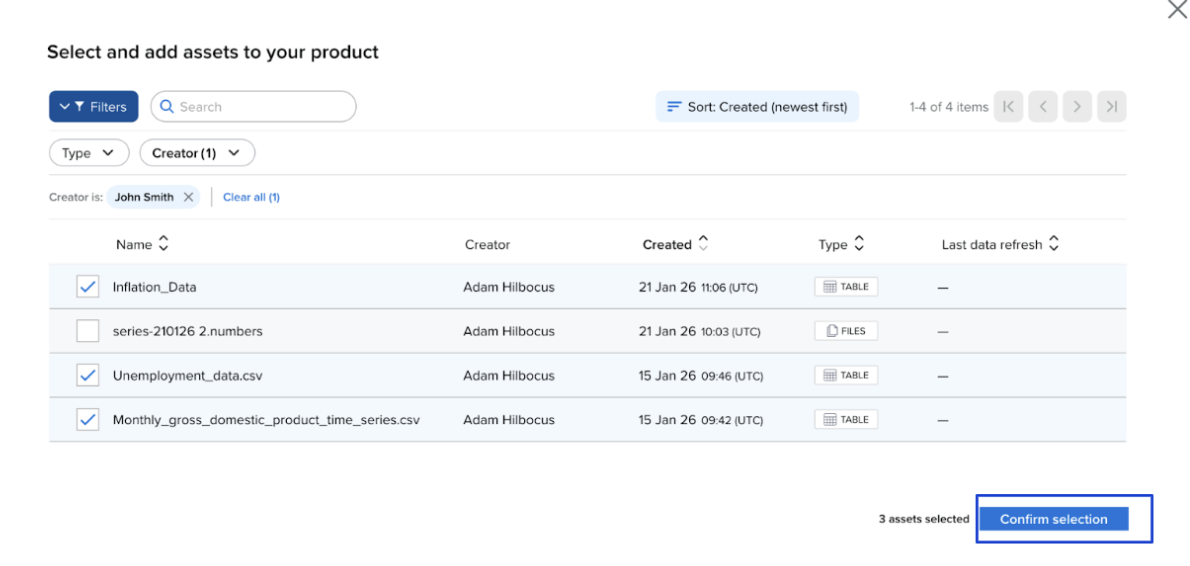
Click Add Assets.
-
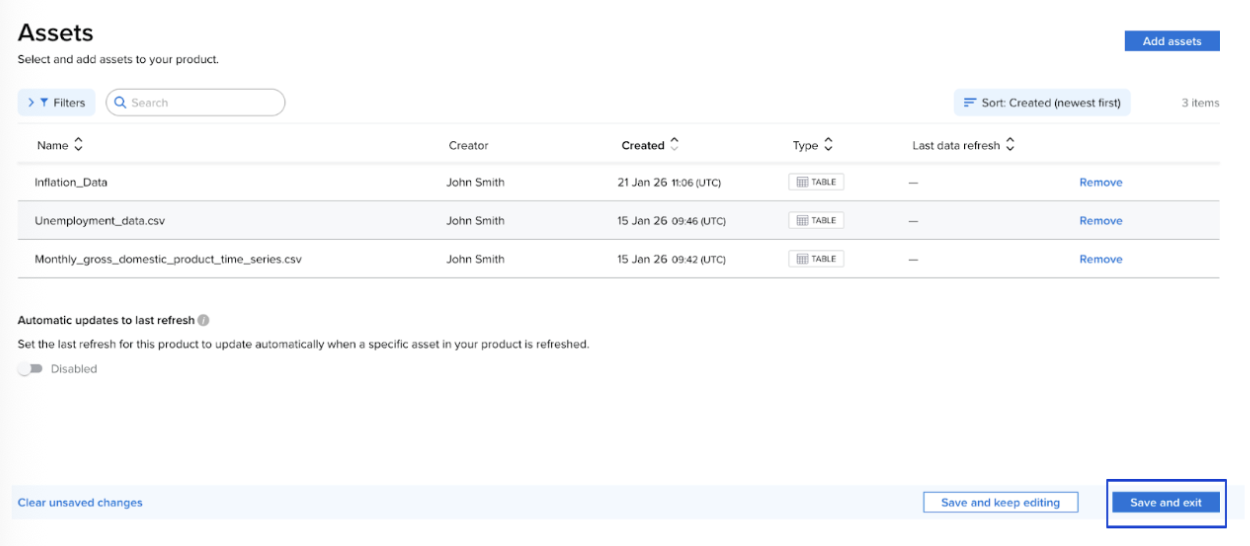
Select the assets you wish to include in your product. You can bundle up to 50 assets into one comprehensive package.
Step 3: Package for Professional Appeal
“Searchability" is key to monetization. Keen to know more?
See a playbook on How the Best Product Managers Market their Best-selling Products
Click Add Packaging to help customers discover your work:
-
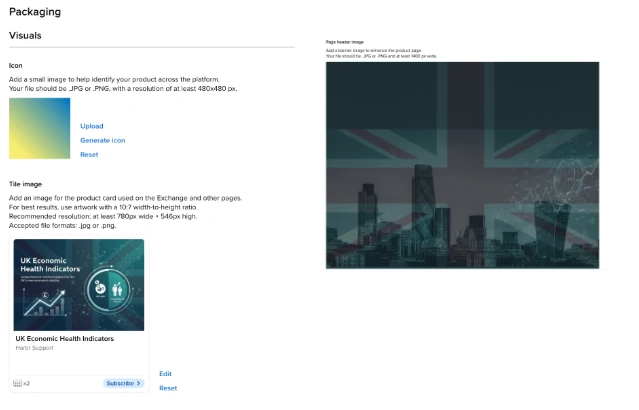
Visuals: Upload a custom Product Icon, Tile Image and Header Image that represents your brand and the product.
-
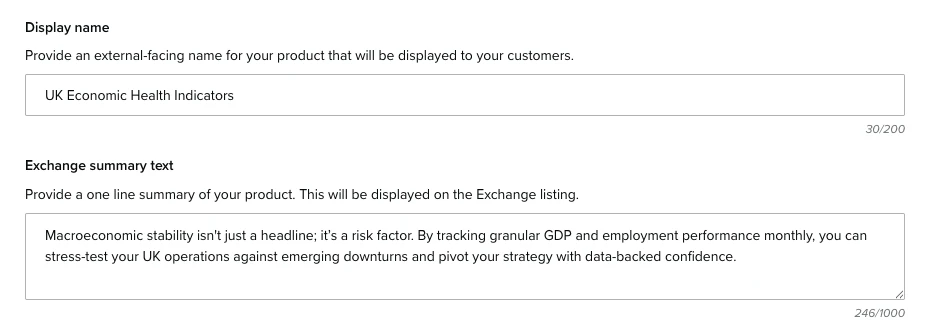
The Hook: Add a Display Name and use the Summary text to explain the "why" (e.g., "Predictive insights into quarterly consumer shifts").
-
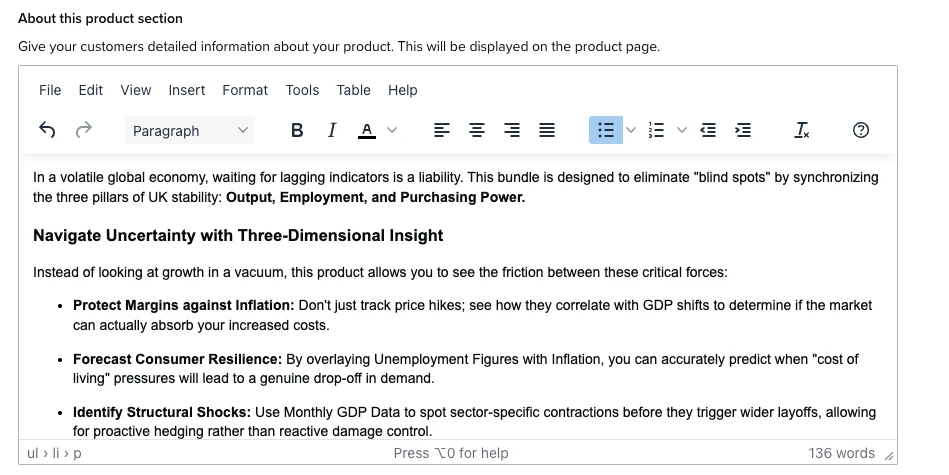
Detailed Insights: In the About this product section, provide the methodology behind your Economic Health Data.
-
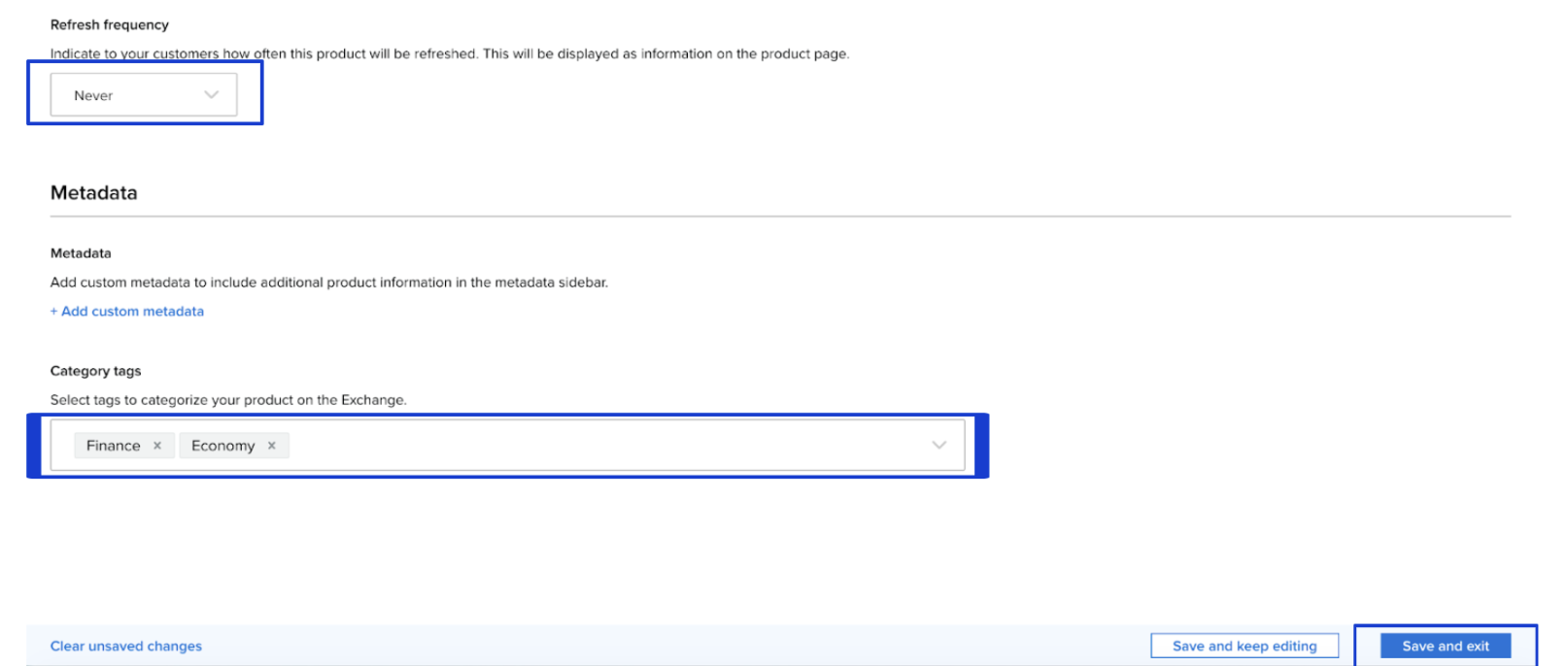
Add your Refresh Frequency so your consumers know how often (if at all) your product will update, and Category Tags (like Finance or Technology) so buyers can find you on the Exchange.
-
When you’re done, click Save and exit.
Step 4: Define Your Monetization Strategy
This is the only mandatory step for a release. Subscription Plans dictate how users consume your data and what they pay for it.
-
Click Add Plans.

-
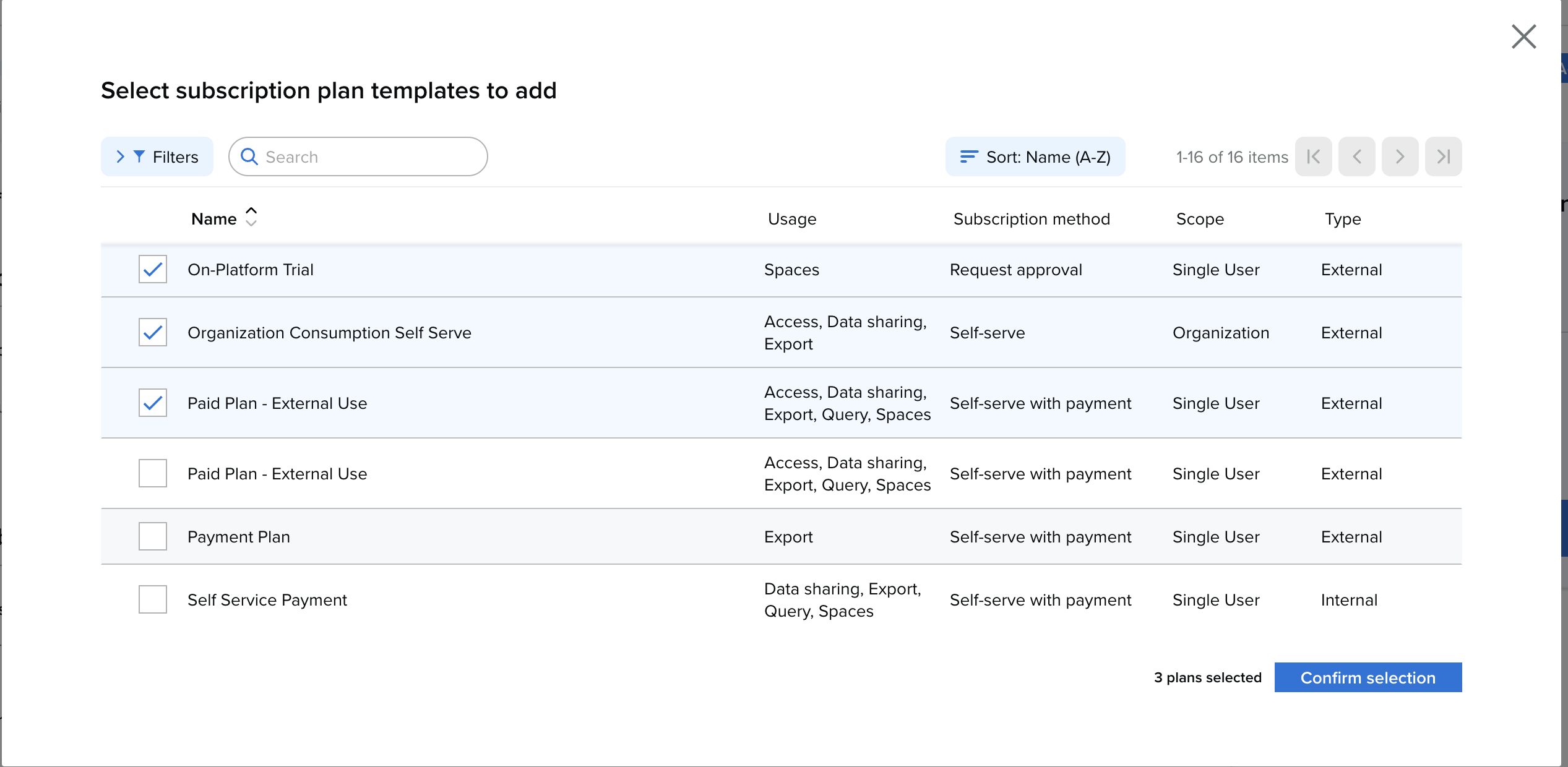
Click on Add Plans (on the top right of the page).

-
Select One or more Plans from a pre-defined list to be made available for Consumer to select.
-
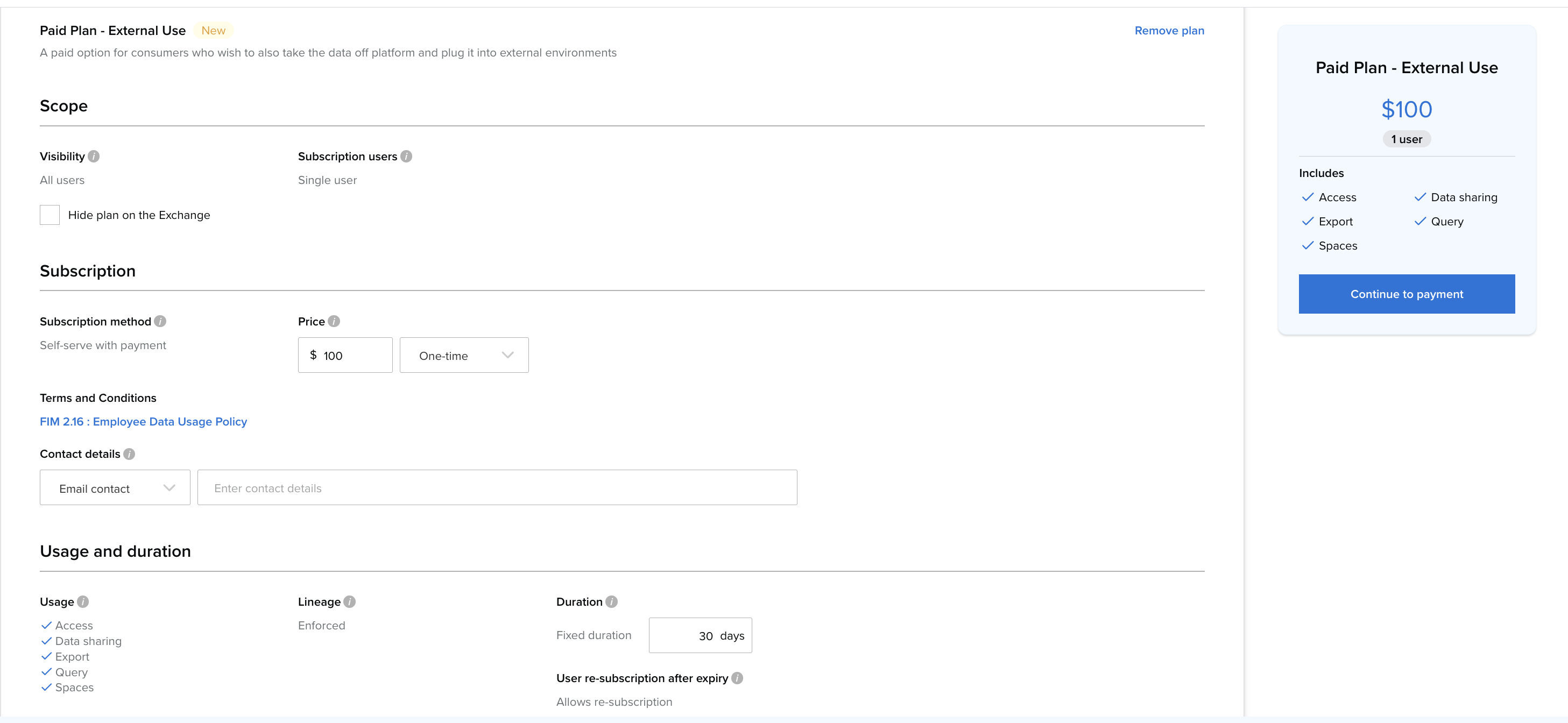
Depending on the plan type you may need to configure the pricing, duration or add contact information. You also get a view of the subscription card on the right side of the page.
-
Once the plans have been added and configured the producer can save and exit.
This ensures you retain absolute control over your intellectual property while setting clear pricing and usage terms.
Step 5: Control Your Market Visibility
Who gets to see your Economic Health insights?
-
Click Set Visibility.
-
Choose to make the product visible to All organizations, specific Selected organizations, or keep it restricted to Selected users.
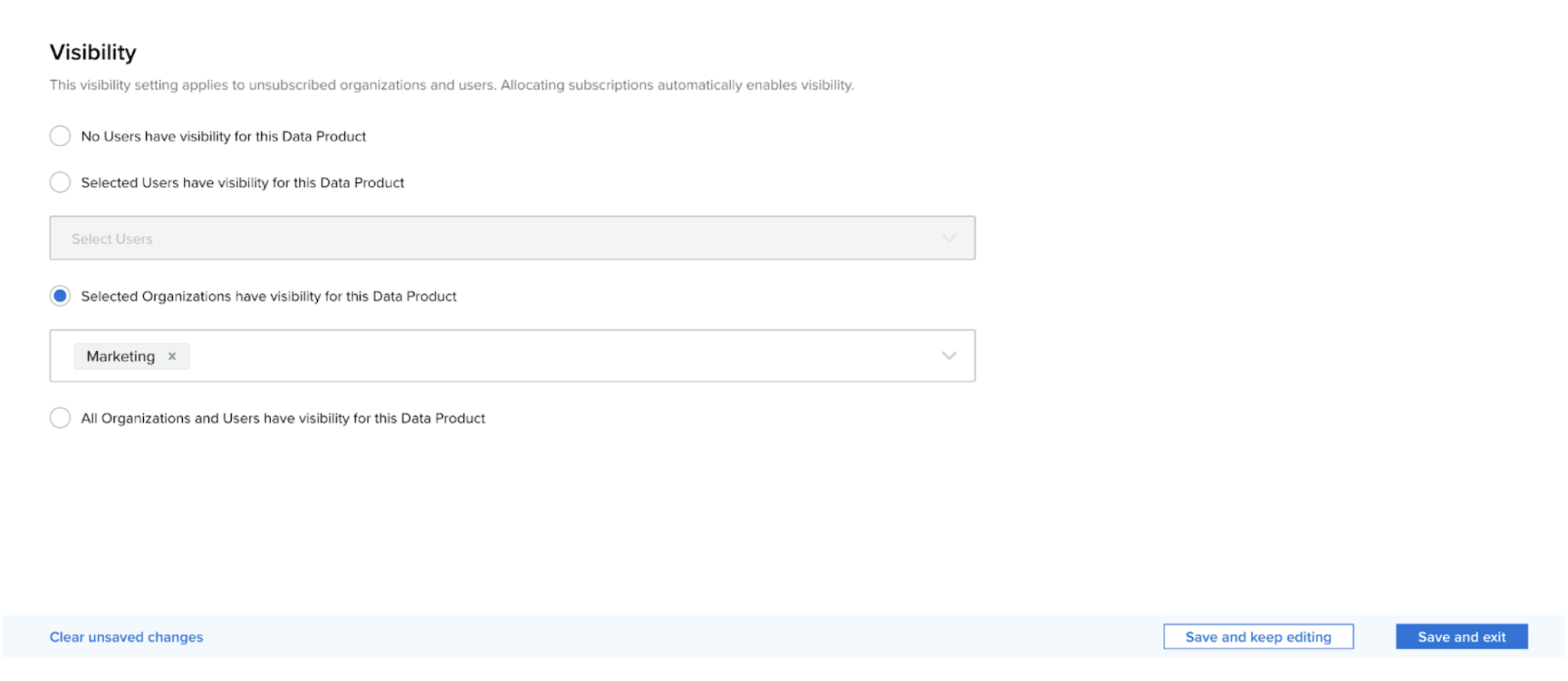
Top Tip: Use "Selected Users" to beta-test your Indicator with a few trusted partners before a full market launch.
Step 6: Go Live
Once you are satisfied with the packaging and plans, you must Release the Product from the Overview page.
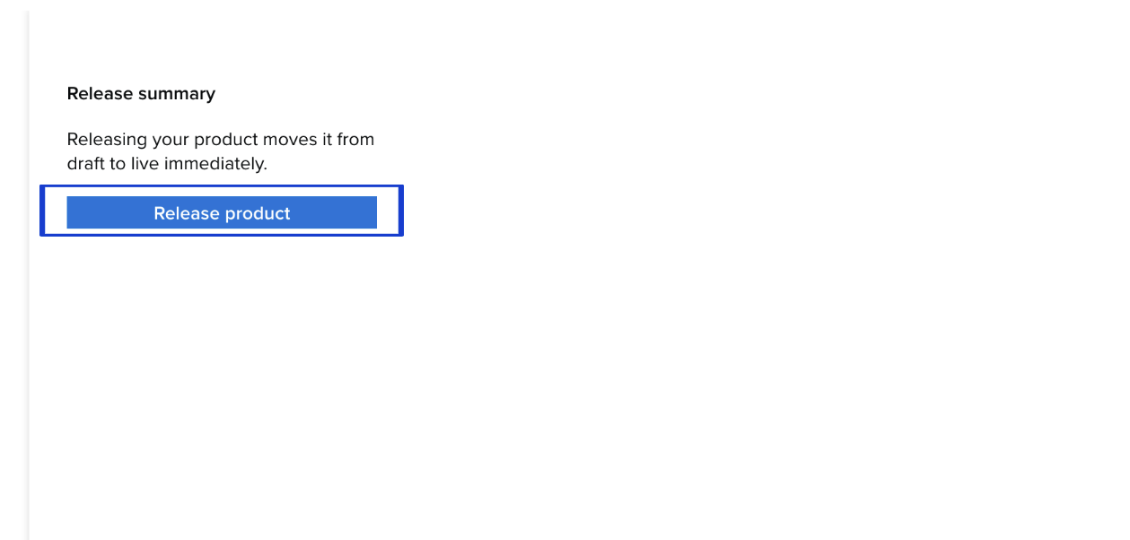
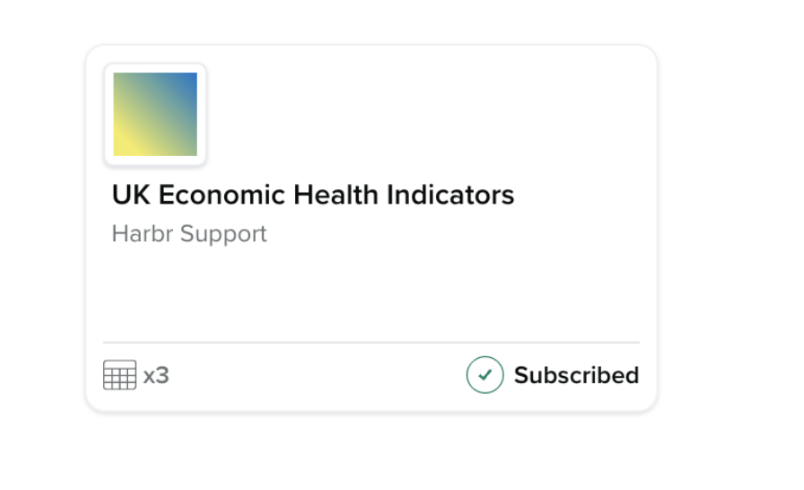
Congratulations! Your Economic Health Indicator product is now live and ready for quick, seamless, value-driven discovery by consumers on the Exchange.
For guidance on how to manage your data products from this point onwards, please see here Manage Products. To understand the many consumer journeys made possible on the Harbr platform, please see here Consume